

Fleet alerts
Every minute the Master checks the conditions that need an operator, opens one incident per fault and target, and closes it again when the fault clears. You decide who is told, and for how long a known fault stays quiet.
Fleet alerts are about the platform, not about a customer’s instance. Customer-facing alerting lives under Monitoring alerts.
What is watched
Section titled “What is watched”| Kind | Opens when | Severity |
|---|---|---|
| Node down or heartbeat stale | A node has not sent a successful heartbeat for 10 minutes (two missed polls). A node that never reported counts once it is older than that. | Critical |
| Node clock skew | A node’s clock differs from the Master’s by more than 30 seconds, in either direction. | Warning; critical above 5 minutes |
| Storage pool near full or unhealthy | A measured storage pool is 90% full, or the pool reports a degraded or failing state. | Warning at 90% or on a health warning; critical at 97% |
| Backup failures above threshold | Three or more backups failed on one node within 24 hours. | Warning at 3; critical at 9 |
| Failed background jobs spike | Ten or more jobs failed within 15 minutes. | Warning at 10; critical at 50 |
| Queue backlog | A queue holds 500 or more waiting jobs. | Warning at 500; critical at 5,000 |
| HA: node down or fenced | High availability marks a node down or fenced. | Critical |
| HA: fencing failed | A fence attempt failed within the last hour. | Critical |
| Platform certificate expiring | An installed platform certificate expires within 14 days, whatever its renewal state. | Warning at 14 days; critical at 3 days or expired |
| License problem | The license check reports a problem. | Critical |
| Master disk pressure | The Master’s disk is 85% full. | Warning at 85%; critical at 95% |
| Master memory pressure | The Master’s memory use is 90%. | Warning at 90%; critical at 97% |
The thresholds are part of the Master’s configuration and are not edited in the panel; the only setting on the page is the reminder interval. Everything is read from data the Master already holds (heartbeats, storage metrics, the backup queue, failed jobs, queue sizes, HA state, certificate rows, the license check and the Master host), so enabling fleet alerts needs nothing on the nodes.
If the Master cannot read a source, for example the license state is unknown, it does not close the incident for that kind. An incident closes only when the condition was checked and found clear.
Where to find it
Section titled “Where to find it”In the admin panel open Logs > Fleet alerts in the sidebar (the page breadcrumb reads System > Fleet alerts). Viewing needs the monitoring.fleet_alerts.view permission. Acknowledging, resolving, silences and routing need monitoring.fleet_alerts.manage; an admin with view only sees the page without the action buttons.
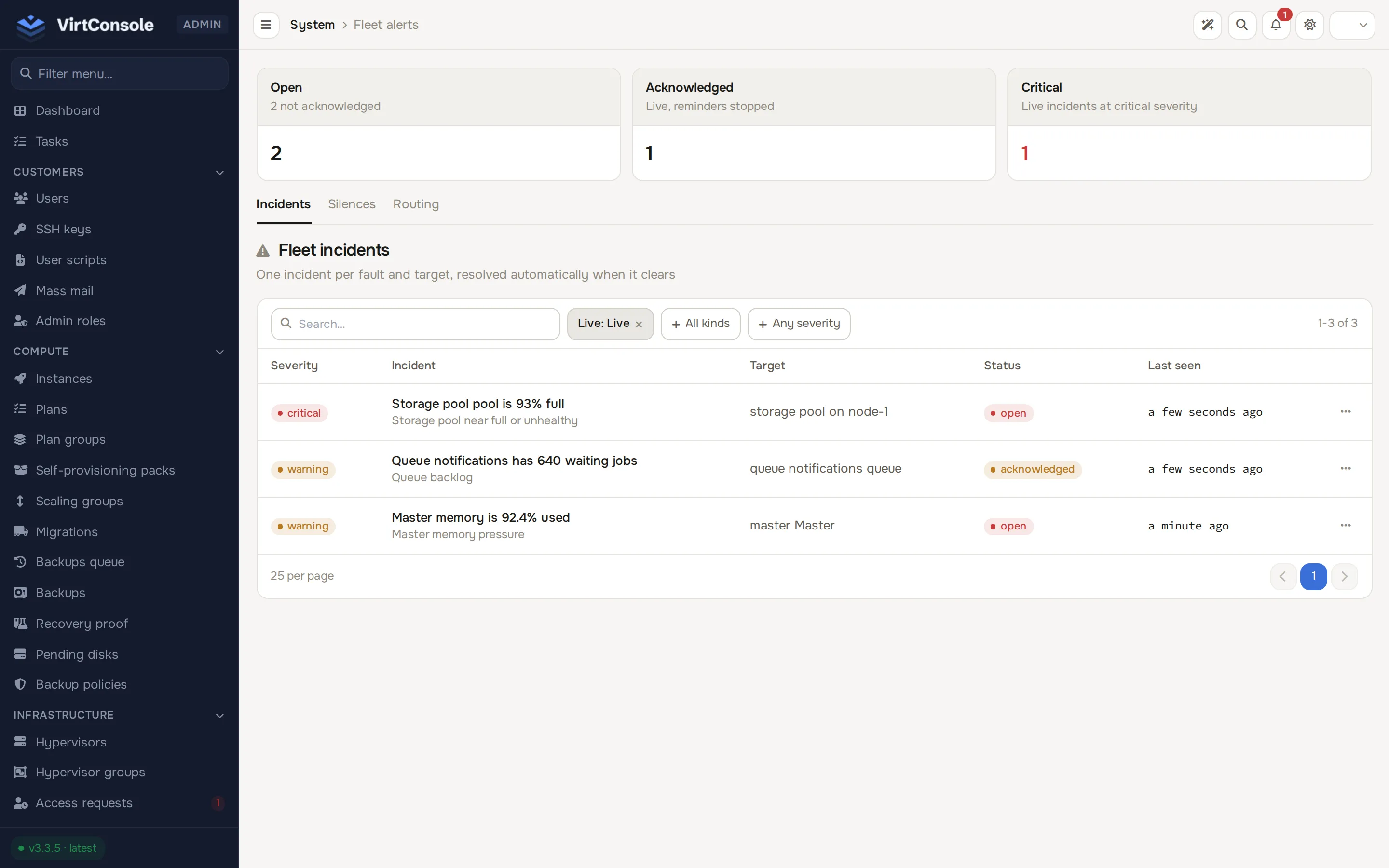
The three tiles at the top count Open (not acknowledged), Acknowledged and Critical live incidents. The page has three tabs: Incidents, Silences and Routing.
Incidents
Section titled “Incidents”Each row is one fault on one target, for example “Node clock skew” on one node. A fault that persists updates the same incident (current facts, last seen time) and is not announced again. The list filters on Live, Open, Acknowledged, Resolved or All, on kind and on severity.
The table shows severity, the incident title with its kind, the target, the status and when it was last seen. Click a row (or Details) for the kind, target, severity, first and last seen time, how many notifications were sent, and the facts the check recorded, for example the percentage or count the check measured and, for a held reading, the value it clears below.
An incident moves through these states:
- Open: live and not acknowledged. Notifications and reminders go out.
- Acknowledged: live, but you have taken it. Reminders and escalations stop.
- Resolved: the condition cleared (resolved automatically), or an operator closed it.
Automatic resolution and flapping
Section titled “Automatic resolution and flapping”Storage fill, queue backlog, Master disk and Master memory use hysteresis so a reading that hovers around its limit does not open and close an incident every few minutes. An open incident stays open while the reading sits in the band just below its opening threshold (5 percentage points for the percentage kinds, 10% of the threshold for the queue backlog) and resolves once the reading has stayed below that band for 3 minutes. The band never opens a new incident by itself.
Acknowledge
Section titled “Acknowledge”Click Acknowledge to say you are handling it. Acknowledging stops reminders and escalations; the incident stays live and resolves on its own when the fault clears. Acknowledging twice is harmless.
Resolve
Section titled “Resolve”Resolve closes an incident by hand. If the fault is still present, a new incident opens on the next evaluation. For a known, ongoing fault, acknowledge it or add a silence instead.
Silences and maintenance windows
Section titled “Silences and maintenance windows”Open the Silences tab and click Add silence.
| Field | Meaning |
|---|---|
| Kind | One kind, or Every kind. |
| Target type and Target id | A type (hypervisor, storage, queue, system domain, certificate, master) or Every target, and optionally one target id. Leave the id empty for every target of that type. |
| Starts | Leave empty to start now. A start in the future makes it a maintenance window. |
| Ends | Required. A silence lasts at most 90 days. |
| Reason | Required, for example Kernel upgrade on node-01. |
A silence suppresses notifications only. Matching incidents are still recorded, updated and resolved, and the recovery notice for a covered incident is also withheld. Click End on a silence to stop it early.
Nodes can also be silenced from the node itself: a hypervisor in maintenance or flagged silent produces no fleet notifications.
Routing: who is told
Section titled “Routing: who is told”Open the Routing tab.
Notification channels
Section titled “Notification channels”Fleet incidents reuse the admin notification channels you already created under Support > Channels. Switch on the channels that should receive fleet incidents, choose the lowest severity each one gets (Warning and critical, or Critical only), and click Save routing. Delivery failures count against a channel exactly as they do for support notices, including the automatic disable after repeated failures.
Email recipients
Section titled “Email recipients”For anyone without a chat channel, add an email address under Email recipients, choose a minimum severity and click Add recipient. The address receives nothing until its owner opens the confirmation link mailed to it (valid for 48 hours). Use Resend link if it expired, Send test to check a confirmed address, Disable and Enable to pause and resume it, and Remove to delete it. A recipient whose deliveries fail ten times in a row is disabled; click Enable once the cause is fixed.
Notices and reminders
Section titled “Notices and reminders”An incident can produce four notices: fired when it opens, escalated when its severity rises, reminded while it stays open and unacknowledged, and resolved when it clears. A resolved notice is sent only when an earlier notice was delivered and no silence covers the incident.
Set Re-notify every (minutes) to control reminders. The default is 60; 0 turns reminders off. It is saved with Save routing. Acknowledged incidents are never reminded.
If no channel or confirmed recipient is configured yet, the incident still opens and shows on the page; its first notice goes out as soon as a destination exists.
Retention
Section titled “Retention”Resolved incidents and ended silences are removed after 90 days.
Admin API
Section titled “Admin API”The same data is available on the admin API (/api/v1):
| Endpoint | Purpose |
|---|---|
GET /system/fleet-incidents, GET /system/fleet-incident/{id} |
List and read incidents. |
POST /system/fleet-incident/{id}/acknowledge |
Acknowledge. Answers 200 again if already acknowledged. |
POST /system/fleet-incident/{id}/resolve |
Resolve. |
GET and POST /system/fleet-silences, DELETE /system/fleet-silence/{id} |
List, create and remove silences. |
Acting on an already resolved incident answers 409 with reason: "incident_resolved". Channel and recipient routing is configured in the panel.
Common problems
Section titled “Common problems”- An incident keeps reopening after I resolve it. The fault is still there. Acknowledge it, or add a silence for the window you expect it to last.
- Nothing was sent for a new incident. Check the Routing tab: you need at least one channel, or one confirmed email recipient whose minimum severity covers the incident, and no silence covering it.
- A recipient shows as not confirmed. The link expires after 48 hours; click Resend link.
- A node shows a clock skew warning. Fix the node’s time synchronisation. The warning clears itself once the skew is under 30 seconds.