

Managed databases
Managed databases let customers deploy a MySQL, MariaDB or PostgreSQL database from one panel page instead of operating the engine themselves. The panel provisions the VM, installs the engine, sets up replication when the customer adds replicas, runs scheduled backups, and tracks usage for hourly billing.
Database operation admission
Section titled “Database operation admission”Database backup admission (3.3.3): full and incremental backups share an atomic reservation. The user and admin backup APIs answer 409 backup_in_progress while a backup is pending or in_progress, or 409 database_busy while nonterminal work runs on the actual source VM, including a selected replica. Elapsed time does not release a running backup. Recovery, PITR reopen and pending restore activation also refuse backups; incremental requirements remain explicit and never fall back silently to full.
A restore-to-new database, including a failed restore, must activate successfully before restart, admin-password reset, resize, database backup, parameter-group application or monitoring repair (409 restore_not_activated). A transport error, node HTTP 5xx/408/429 or invalid acknowledgement can retain pending backup/task ownership until a terminal callback or operator reconciliation. Inspect both records before retrying. Caught dispatch errors answer HTTP 200 with success: false on the user backup API, mapped to HTTP 400 by the admin API. See the API changelog for the exact contracts.
Before you begin
Section titled “Before you begin”- A hypervisor group with VPC enabled. Database VMs are deployed into VPC networking, and read replicas require it because replication runs over the private network. See VPC.
- The group needs metrics configured for the database metrics tab to work; see step 4.
Where to find it
Section titled “Where to find it”Databases live at Platform services > Databases, plans at Platform services > DB plans, groups at Platform services > DB plan groups, and backup policies at Platform services > DB backup policies (covered in Database backup policies).
Step 1: Prepare database images
Section titled “Step 1: Prepare database images”Databases deploy from OS images that have the engine pre-installed. Register them under Media & DNS > Images (see Images):
- Set Purpose to
Database. - The image name should match the engine (for example
MySQL) and the image version the engine version (for example8.0).
You can register several images for different engine and version combinations. When several match, the most recently created one is used.
Step 2: Create database plans
Section titled “Step 2: Create database plans”Go to Platform services > DB plans to see every database plan.
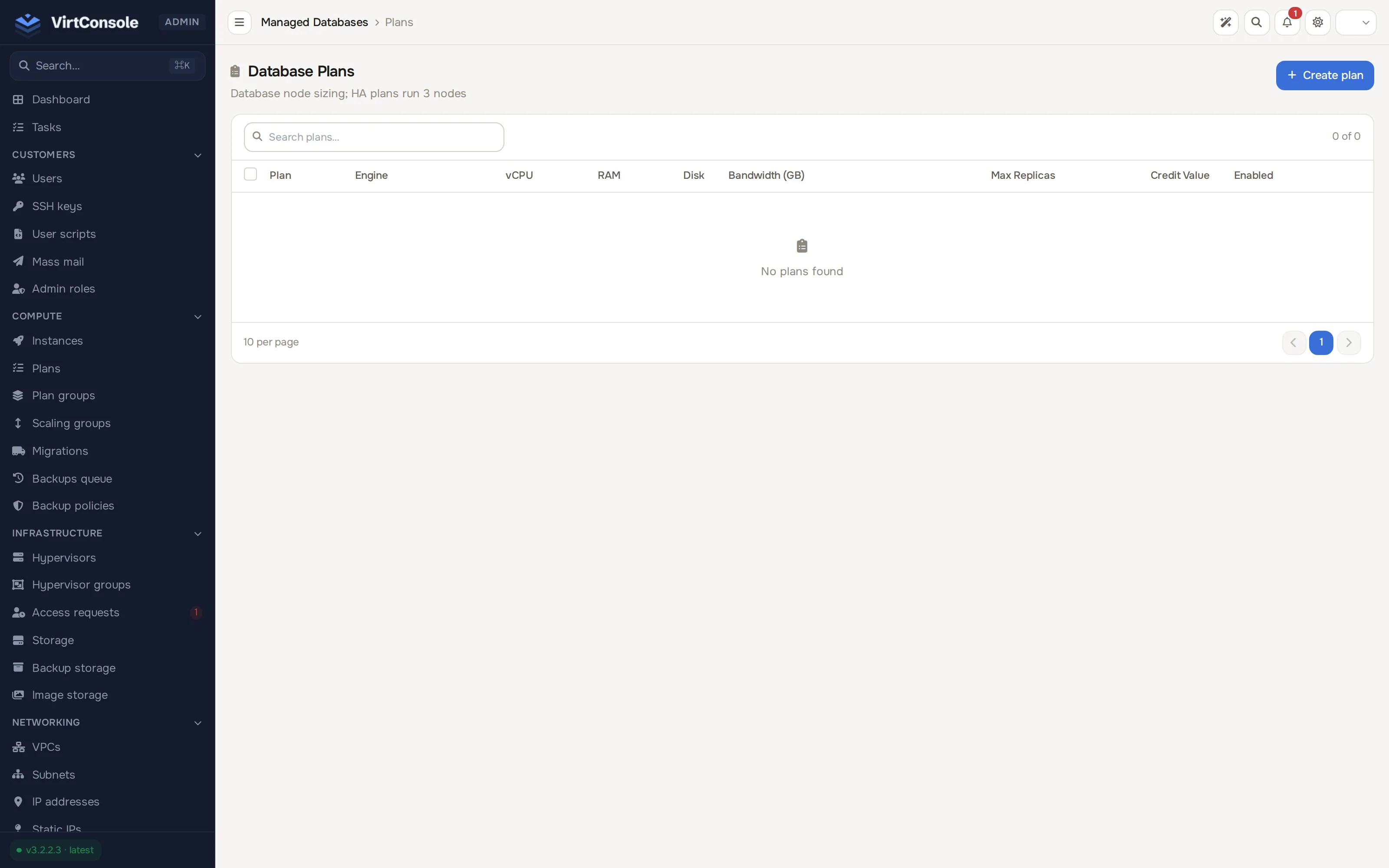
- Click Create plan. The Add Plan form opens as its own page.
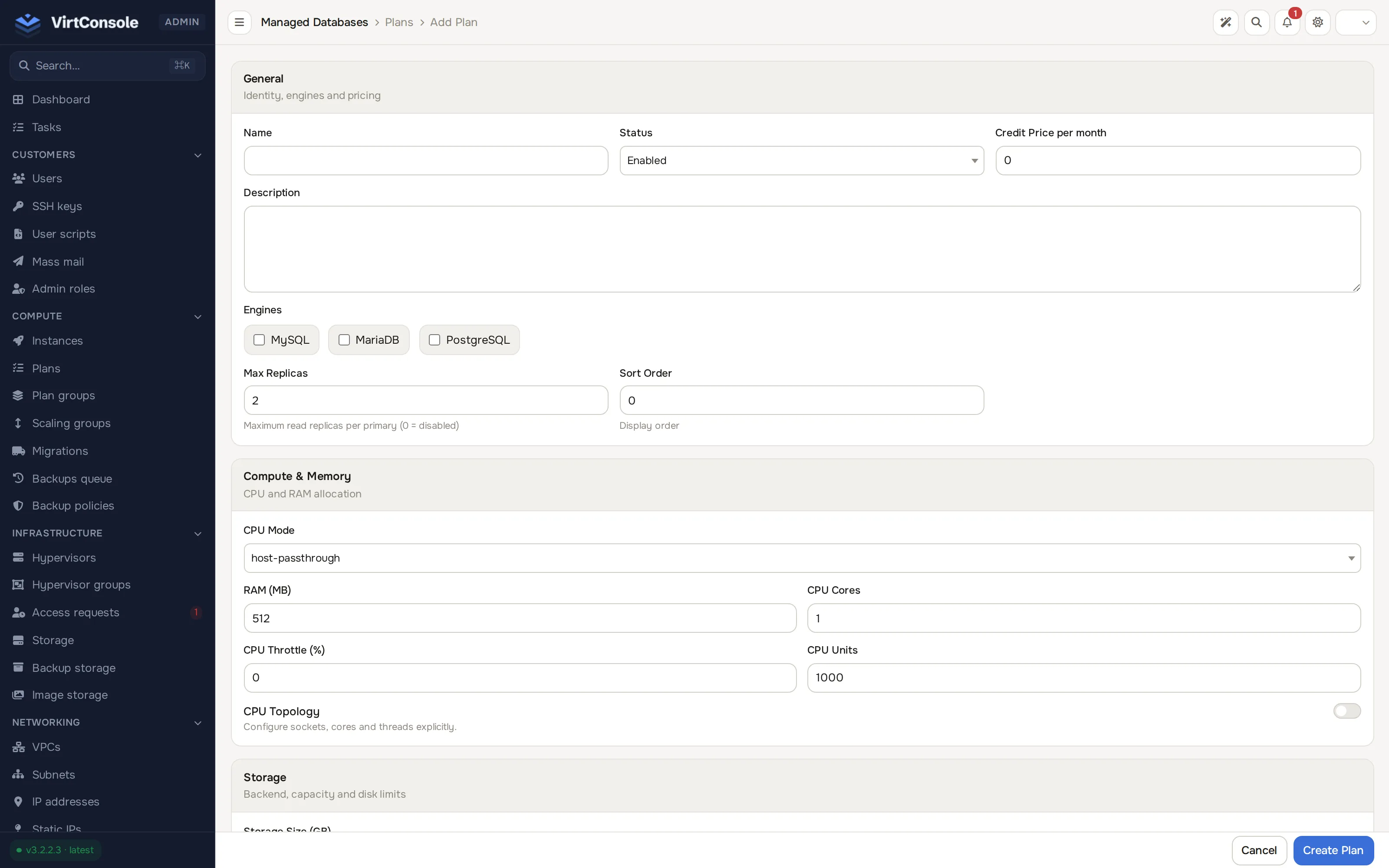
- Fill in the General section:
General fields
| Field | What to enter |
|---|---|
| Name | Customer-facing label. |
| Status | Enabled or Disabled. |
| Description | Free-form text. |
| Engines | Which engines can use this plan: MySQL, MariaDB, PostgreSQL. |
| Credit Price per month | Base price in credits. The hourly rate is this divided by the hours in a month. |
| Max Replicas | Maximum read replicas per primary. Default 2; 0 disables replicas. |
| Sort Order | Display order in the customer wizard. |
-
Fill in Compute & Memory: CPU Mode, RAM (MB), CPU Cores, CPU Throttle (%), CPU Units, and optional CPU Topology (sockets, cores, threads).
-
Fill in Storage: Storage Size (GB) and the storage backend selection.
-
Fill in I/O Operations: Read IOPS, Write IOPS, Read Throughput and Write Throughput per second.
0means unlimited. -
Fill in Network:
Network fields
| Field | What to enter |
|---|---|
| Network Driver | VirtIO (default), Realtek 8139 or E1000. |
| Bandwidth | Monthly allowance in GB. 0 means unlimited. |
| Upload Speed / Download Speed | Rate limits in Mbit/s. |
| Bandwidth Accounting | Which direction counts: Both, Uploads Only or Downloads Only, from the database’s point of view (uploads are traffic it sends). |
| Bandwidth Overage | Past the allowance: Suspend Network, Suspend Instance or Charge Overage. |
| Bandwidth Rate (per GB) | Per-GB price when overage is charged. |
- Click Create Plan.
Step 3: Create a plan group
Section titled “Step 3: Create a plan group”Go to Platform services > DB plan groups to see every group.
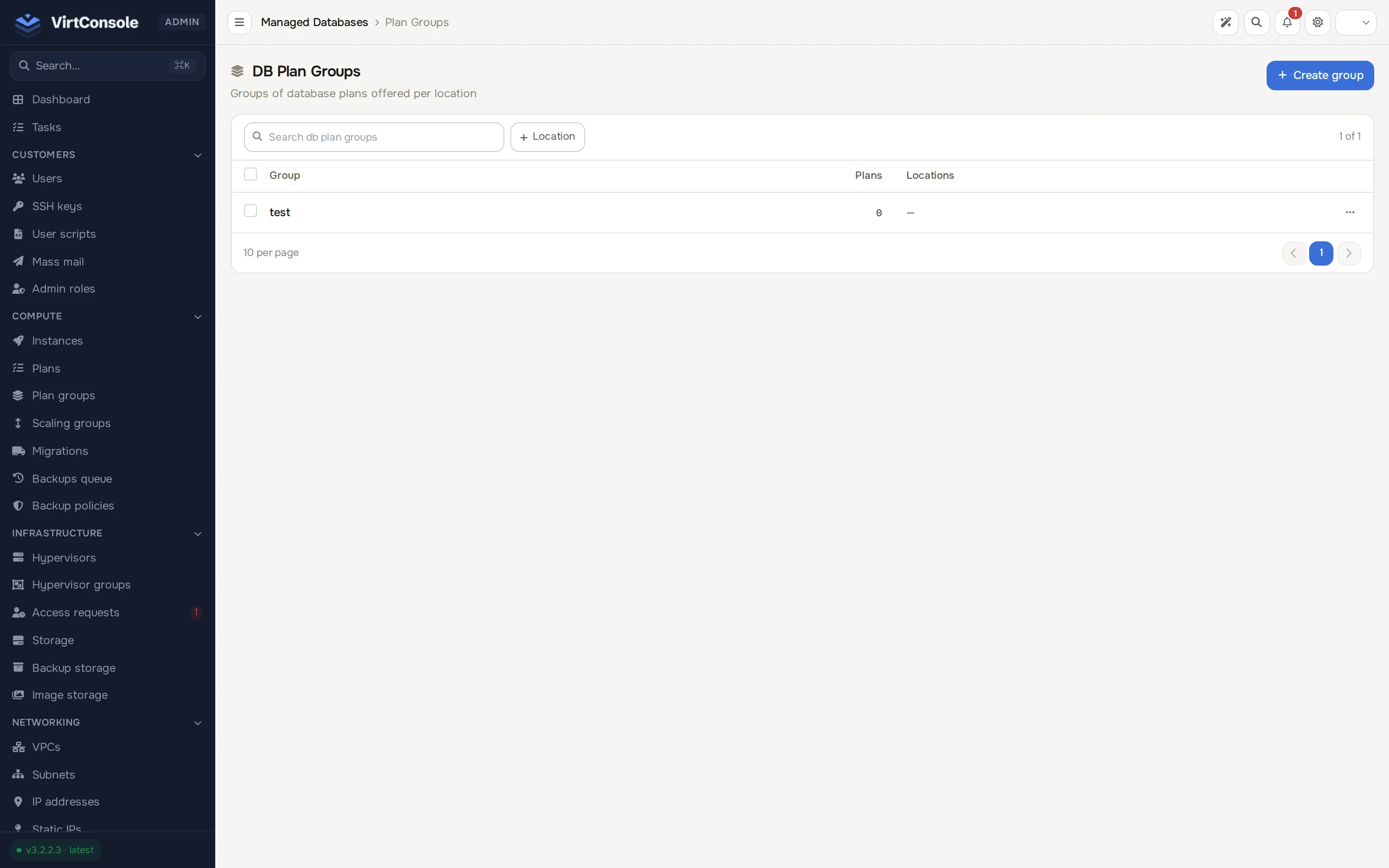
- Click Create group. The Create group dialog opens.
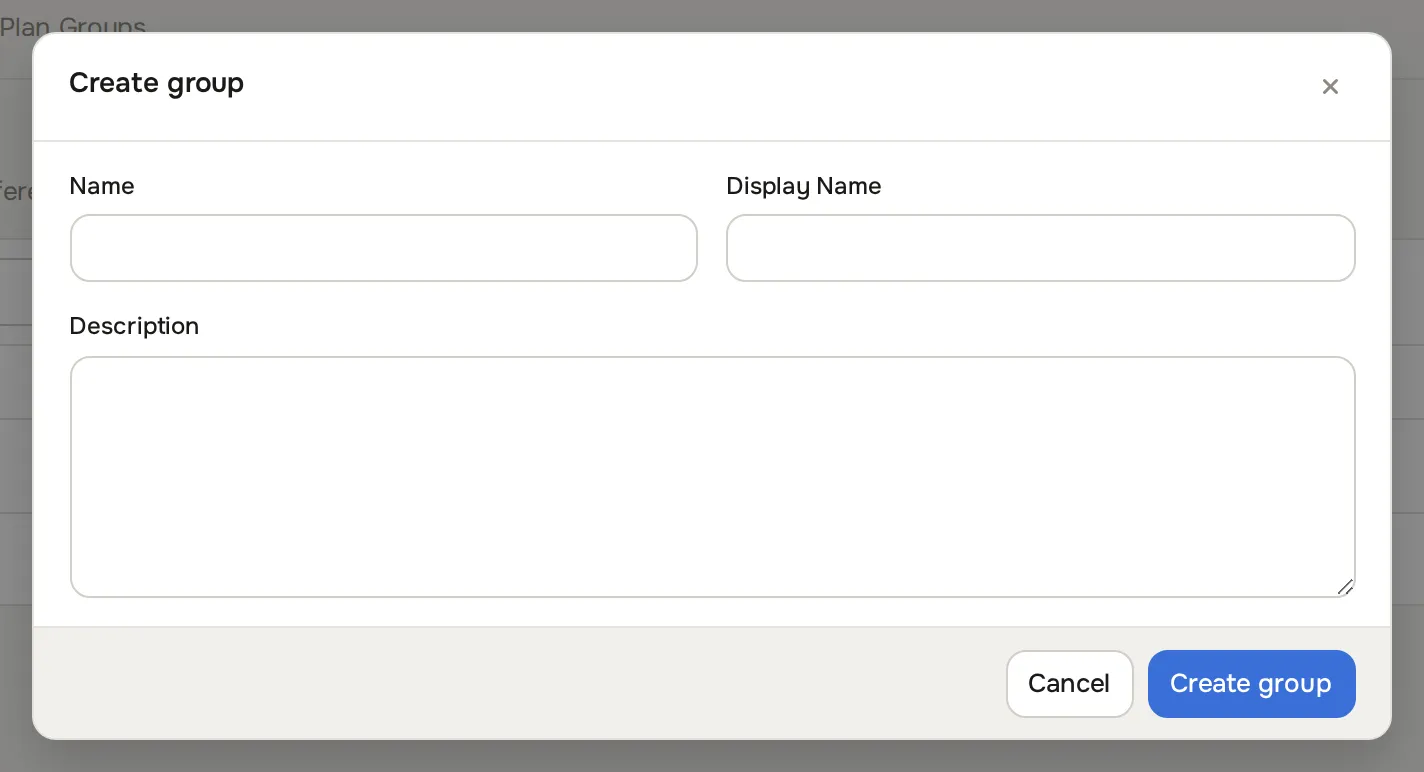
- Enter a Name, Display Name and optional Description, then save.
- Open the group with Edit and use Select Plans to assign the database plans it contains.
Different regions can link different plan groups, with different plans or pricing.
Step 4: Enable managed databases in a region
Section titled “Step 4: Enable managed databases in a region”- Go to Infrastructure > Hypervisor groups and open the group.
- In the Managed Databases card, switch Enable Managed Databases on.
- Under Select DB Plan Groups, link the plan group from step 3.
- In the Monitoring / Metrics card (shown once VPC and managed databases or load balancers are enabled), configure the metrics backend:
Metrics fields
| Field | What to enter |
|---|---|
| Metrics Endpoint | URL of your VictoriaMetrics endpoint, for example http://203.0.113.21:8427. |
| Auth Type | Bearer Token (single token) or Username & Password. |
| Username | Only for Username & Password. |
| Auth Token / Password | The token or password. |
- Save the group.
The recommended metrics stack is a single-node VictoriaMetrics behind its vmauth auth proxy, one per region, reachable from the region’s hypervisors. The same card feeds both managed databases and load balancers. The setup mirrors the one in Object storage.
Step 5: Set the per-customer limit
Section titled “Step 5: Set the per-customer limit”Each customer can run 5 managed databases by default.
- Go to Customers > Users and open the customer.
- Set Max Managed DBs. Use
0for unlimited. - Save.
Restore into a new database
Section titled “Restore into a new database”A customer can restore an S3 backup or a point in time into a new database from the database’s Backups tab; the source is not changed and the new database is billed from the moment the restore has finished. Admins start one through the admin API (POST /api/v1/database/{id}/restore-to-new); the admin database page offers restore to a new database for VM-level backups only. The new database uses the source’s engine and major version, and the plan must have enough disk for the data. A VPC is required, and the new database is placed on the source’s node when that node can take it, otherwise on another deployable node of the location. Refusals are typed, for example engine_version_unavailable, plan_storage_too_small, backup_chain_broken and account_busy. Details are in Database backup policies.
Operate customer databases
Section titled “Operate customer databases”Platform services > Databases lists every database with filters for engine and status. Rows for primaries expand to show their replicas, with replication state (syncing, active, stopped, error) and lag warnings inline.
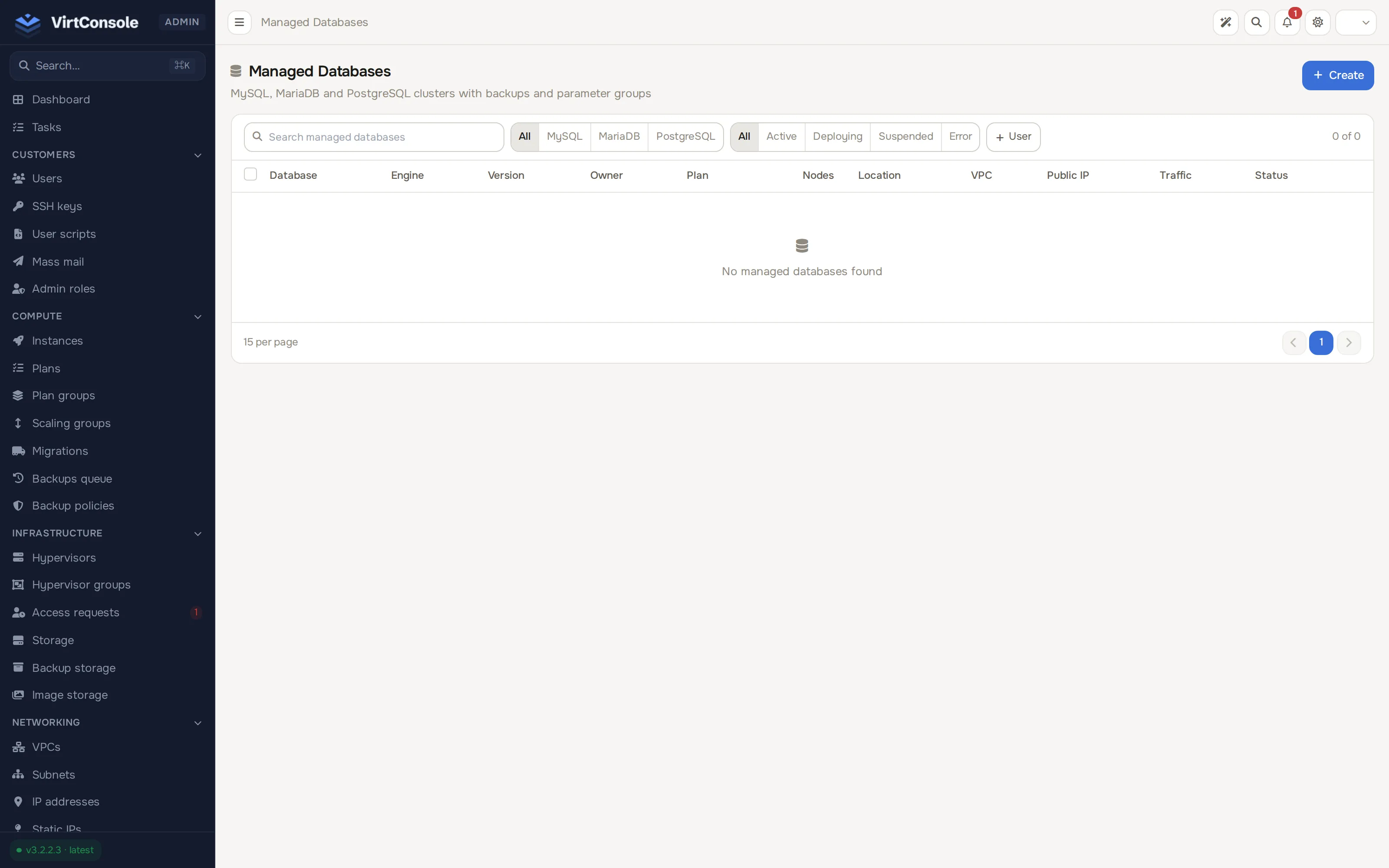
Click Create to deploy a database on behalf of a customer. The form asks for User, Engine, Version, VPC and Subnet, Plan, an optional Name, and an optional Parameter Group.
Open a database with View. The detail page header carries the operator actions:
- Redeploy: rebuild the database from scratch after a failed deploy. Keeps name and credentials.
- Restart: restart the engine process. Use after applying a parameter group.
- Suspend / Resume: stop the underlying VM and pause billing, or bring it back. Suspension also happens automatically when the customer runs out of credit.
- Delete: destroy the database. A primary with replicas cannot be deleted; remove or promote the replicas first.
- Acknowledge: dismiss the error banner of a failed background operation. Errors also auto-clear on the next successful operation.
The tabs are Overview, Backups, Parameters, Tasks, Metrics, Firewall and, for VPC primaries, Replicas (create, resync and promote read replicas). On Metrics, Fix Monitoring repairs the telemetry pipeline for that database (reinstalls the agent configuration, re-creates the exporter login, restarts the agent).
Billing runs hourly through Cloud Service: plan price divided by the hours in a month, plus per-GB bandwidth according to the plan’s accounting and overage settings. Bandwidth is metered from the database’s backing instance every billing cycle and counted per calendar month; once usage passes the plan’s allowance, the overage policy applies (suspend the network, suspend the database, or charge the per-GB rate). A Suspend Network suspension lifts automatically at the start of the next month, or sooner if an admin raises the plan’s allowance.
Managed databases, including replicas and restores into a new database, take their public address from the location’s pool and pass over addresses that are still being released from a previous owner.
Common problems
Section titled “Common problems”- A create or replica request answers “No hypervisors available to deploy managed database.” As an administrator you see each reason with a count, for example
License limits to 5 instances (1 hypervisor), so you can tell a full license tier from a node in maintenance or short on memory. Customers see a general sentence, or “This location has reached its licensed instance limit. Contact your provider.” when the license is the cause. Raise the host’s license tier under Manage your license. - A database is stuck in
Deploying. Read the task error on the database’s Tasks tab, confirm the hypervisor has capacity, confirm aDatabasepurpose image exists for the engine and version, then use Redeploy. - A replica is stuck in
syncing. Confirm the primary isActiveand the VPC subnets allow traffic between the two, then use Resync on the replica. - Replication lag warnings on the primary’s row. The primary is usually overloaded on CPU or disk I/O. Resize the replica or the primary to a larger plan.
- Metrics are empty. Confirm the group’s Metrics Endpoint is set and reachable from the region’s hypervisors, then click Fix Monitoring on the database’s Metrics tab.
- Parameter changes do not take effect. The parameter group’s engine must match the database’s engine, and some parameters need an engine restart. Use Restart.