

Tools (MCP)
Tools let an agent inside a sandbox call external services such as Linear, Notion or your own MCP server. The agent gets the tools, but the sandbox never holds your credentials for them: sign-in tokens are managed by the panel and delivered to the node gateway, and the sandbox receives local gateway endpoints and server metadata without them.
Before you begin
Section titled “Before you begin”- Your provider has the tools gateway turned on and the nodes in your location are up to date. If not, the launch sentence has no tools part, or the launch is refused with “The nodes in this location must be updated before this sandbox can use tools.”
- A kit that supports tools. Agent kits do; kits you build yourself do not unless they register tool servers with the agent. The launcher says “Tools: not supported by this version” for a kit that does not.
Where to find it
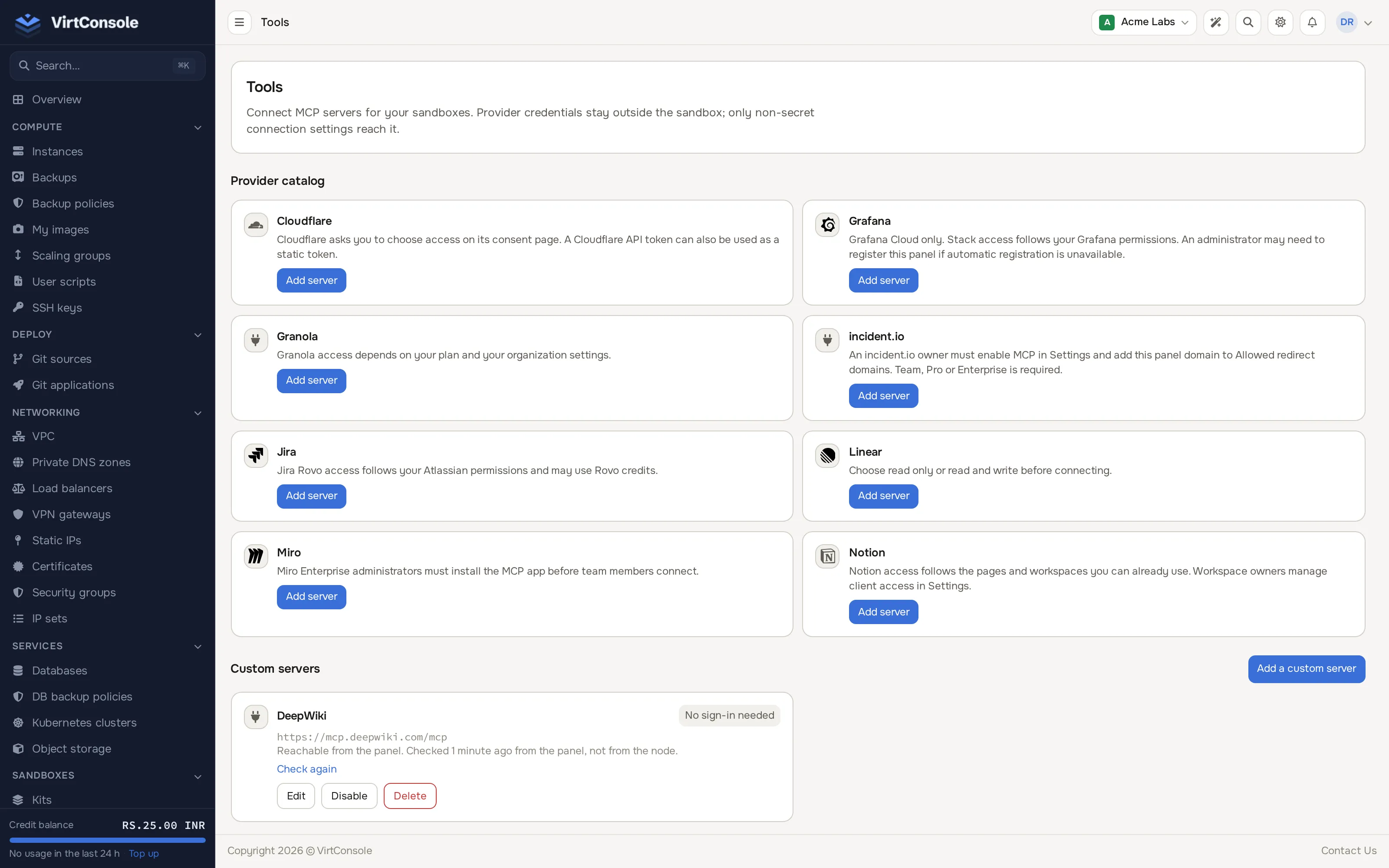
Section titled “Where to find it”In the user panel go to Sandboxes > Tools. The page lists the Provider catalog and your Custom servers.
Add a server
Section titled “Add a server”From the catalog
Section titled “From the catalog”The catalog lists hosted tool servers from providers such as Cloudflare, Grafana, Granola, incident.io, Jira, Linear, Miro and Notion. Each card carries a short note on what the provider needs, for example a paid plan or an administrator approving the integration beforehand.
- Click Add server on the provider’s card.
- Click Connect. A new tab opens on the provider’s sign-in page.
- Approve access. Where the provider offers it, you can choose a permission level beforehand, for example Linear offers Read only or Read and write; the default is Default access.
- Close the tab. The card now shows Signed in, and who you are signed in as.
A custom server
Section titled “A custom server”Click Add a custom server (here, or from the launcher’s tools popover) and fill in:
- HTTPS server address: the public HTTPS address of a Streamable HTTP MCP server, for example
https://mcp.example.com/mcp. The name and label are derived from the host. - Sign-in method:
- OAuth sign-in: the server signs people in with OAuth, as the catalog providers do. You connect it the same way.
- Static token: you paste a token, which is stored encrypted and never shown again. Use Rotate token to replace it.
- No sign-in: the server needs no credential.
Optionally add request headers as a JSON object in the edit form. A server’s address can be changed, or the server deleted, once no running sandbox uses it; disconnect it from those sandboxes beforehand.
Limits
Section titled “Limits”- A launch can use up to 16 different servers.
- An account can keep up to 32 servers.
- Servers must be public HTTPS addresses. Your provider can allow private network addresses for custom servers.
Manage a server
Section titled “Manage a server”Each card offers the actions that apply to it:
- Connect or Reconnect (OAuth servers), and Disconnect. Disconnecting asks the provider to revoke the token and tells you the result. If the provider does not support revocation, the token may stay valid at the provider until it expires.
- Edit, Enable or Disable, and Delete.
- Rotate token (static token servers).
- Check again: the panel tests the server and shows whether it is reachable. This check runs from the panel, not from your node, so it is a hint rather than a guarantee.
OAuth connections belong to the person who signed in. Teammates on your account sign in to the same server themselves, and the card shows how many are signed in. You see your own connection. If your sign-in expires or the provider needs more permissions, the card says Needs sign-in or Scope needed.
Use tools when you launch
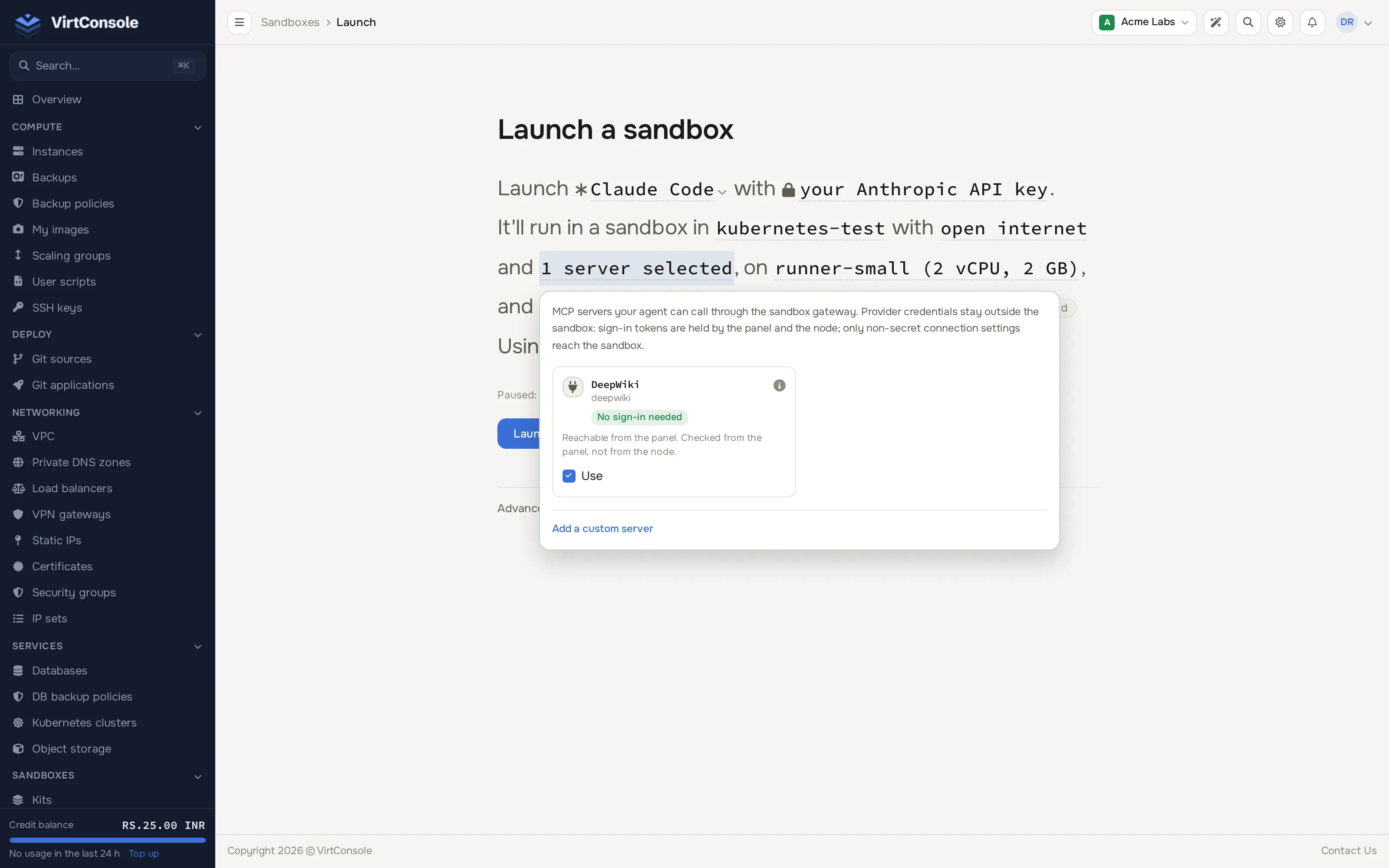
Section titled “Use tools when you launch”- In the launcher, click the Tools part of the sentence. It reads no tools selected, then 1 tool selected or N tools selected.
- Tick Use on each server you want. A server you have not signed in to shows Connect instead; the sign-in opens in a new tab and you can come back to the popover.
- Launch as usual.
Credentials are looked up when the sandbox starts. Starting, redeploying or rolling back a sandbox later keeps using the tools of the person who launched it, not whoever clicks the button.
What the agent sees
Section titled “What the agent sees”Inside the sandbox, each selected server appears as a local address of the form http://127.0.0.1:<port>/<name>/mcp. The gateway on the node adds the credential when it forwards a call, so the agent talks to that local address.
How the agent learns about the servers depends on the kit:
- Claude Code, Codex CLI, Gemini CLI, OpenCode, OpenCode 2 and GitHub Copilot CLI: the kit writes each agent’s own tool configuration when you open a login shell in the sandbox (the web shell is one). If you already have an entry with the same name in the agent’s configuration, it is left alone and the sandbox tells you about the conflict. To let the sandbox manage that name, remove or rename your own entry and open a new login shell.
- Shell: there is no agent, so nothing is configured. The kit writes a list of the servers to
~/.config/sandbox-mcp/servers.jsonfor your own scripts to use.
Gemini CLI connects to tools in a folder you have told it to trust; it asks when you open it.
See it on the sandbox page
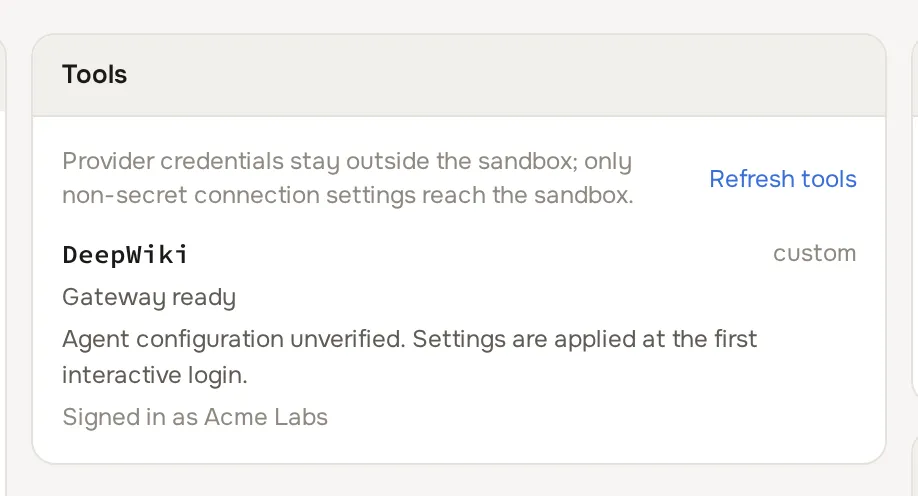
Section titled “See it on the sandbox page”When a sandbox uses tools, its Overview tab has a Tools card. For each server it shows two separate things:
- The gateway state: for example Gateway ready, Restoring, Updating, Clearing pending, Cleared, Scope needed, Unknown, or a note that the provider refused the token and the person who launched it must sign in again.
- The agent state: Configured, Partly configured, Not configured, Export only, or “Agent configuration unverified. Settings are applied when you open an interactive login shell.”
It also shows who the connection is signed in as, when it was last used, and a Refresh tools button. If another team member owns the connection, that member reconnects it.
When a sandbox pauses, stops or is deleted
Section titled “When a sandbox pauses, stops or is deleted”Stopping or deleting a sandbox clears that run’s gateway credential on the node once the stop is confirmed. Your saved sign-in remains for later launches. Disconnecting a server removes the saved sign-in and requests clearing on the node, which completes asynchronously. A paused sandbox has its tools re-attached when it resumes. If a clear cannot be confirmed yet, the card says so (“Clearing is pending”) and tells you when an OAuth token may still be usable at the latest.
Common problems
Section titled “Common problems”- The tools part is missing from the launch sentence. The gateway is off, or this kit does not support tools.
- “This server is used by a running sandbox.” Disconnect it from the sandboxes listed, or wait for them to stop, then change or delete it.
- “An administrator must register this panel with the provider before you can sign in.” The provider requires a manual registration of the panel. Ask your provider.
- A provider says sign-in succeeded but tools do not appear. Open a login shell in the sandbox so the agent’s configuration is written, and check the Tools card on the sandbox page for the agent state.
- The server shows Unreachable from the panel. The server address may be wrong, or the server may block the panel’s network. The sandbox’s node may still reach it; the check is a hint.