
Kits
A kit is the template a sandbox launches from. Three kinds appear in the admin list: platform base kits that you sync from VirtConsole’s own catalog, agent kits that you install from the signed kit hub, and kits customers build themselves from a Dockerfile, a container image or a Git repository. This page covers what you manage as the operator.
Where to find it
Section titled “Where to find it”In the admin panel go to Sandboxes > Kits.
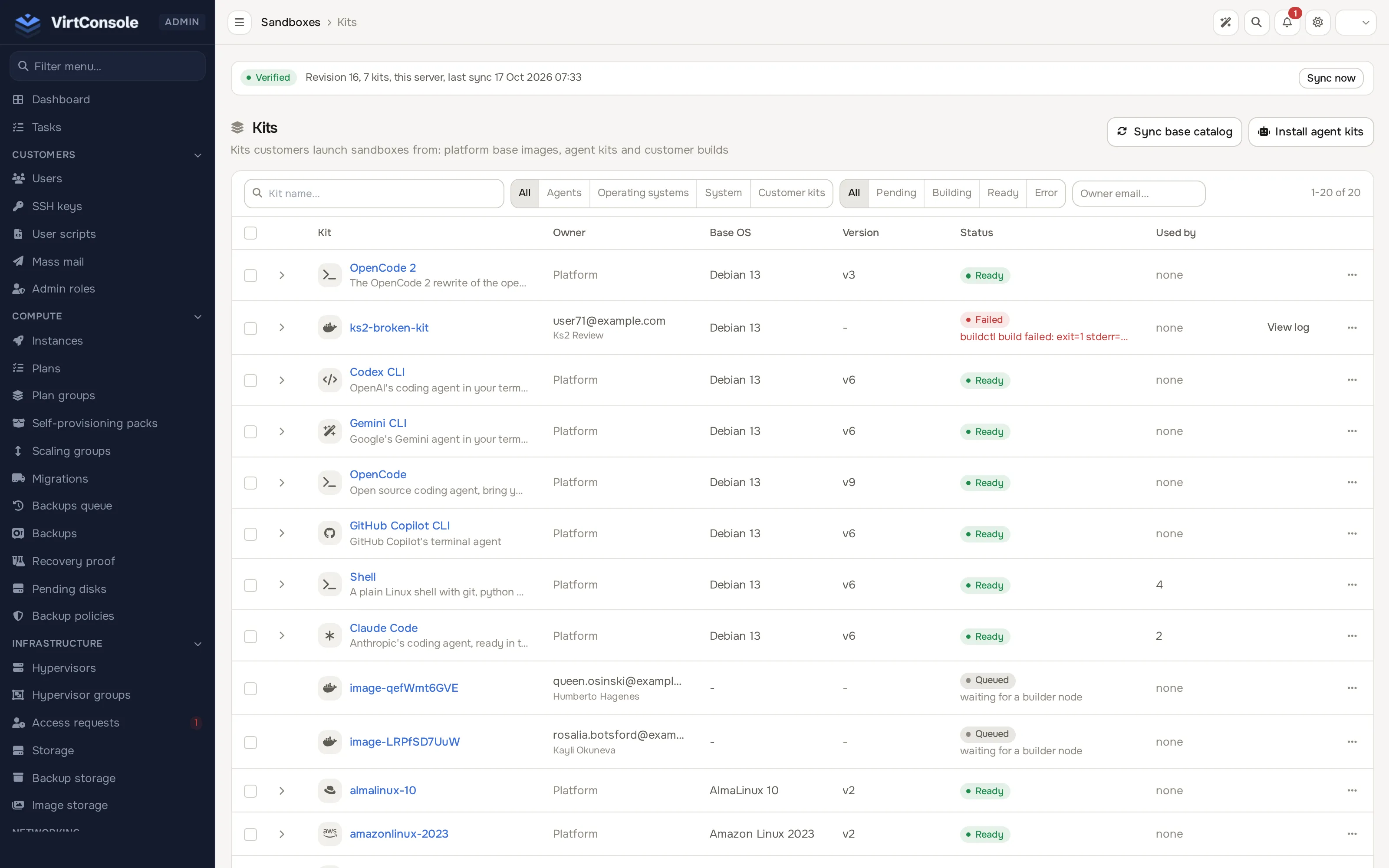
Unlike the customer-facing page, this list is cross-account: it shows every platform kit and every customer’s own kits, with the owning account’s email and an owner filter. A strip at the top of the list shows the state of the kit hub catalog (see below).
Sync the base kit catalog
Section titled “Sync the base kit catalog”Click Sync base catalog. This fetches the signed manifest published at packages.virtconsole.com/microvm/manifest.json, verifies its signature, and creates or updates the platform’s base kits (sandbox-base, app-base, runner-base, builder) with a ready version each. It never touches a customer’s own kits. Do this after a platform release note mentions updated base kits, or when the Readiness page’s catalog check warns that the catalog has not changed in over 7 days.
Install agent kits from the hub
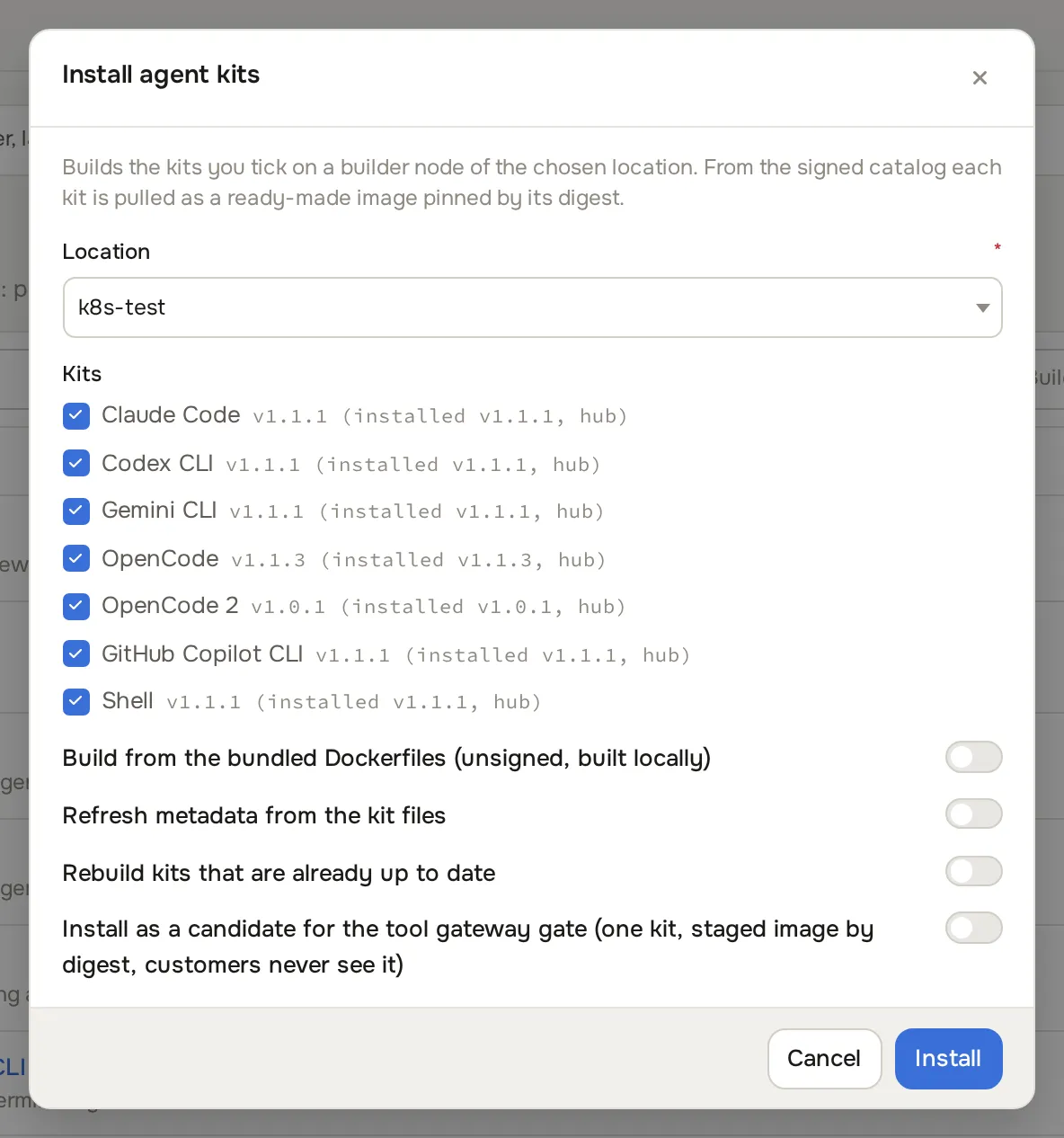
Section titled “Install agent kits from the hub”Agent kits (Claude Code, Codex CLI, Gemini CLI, OpenCode, OpenCode 2, GitHub Copilot CLI and Shell) are not part of the base catalog. They are published to a public Docker Hub namespace as signed, pinned images, and your panel installs them from there. Nothing is pre-baked on your nodes: each kit is built on your own node from the exact image the signed catalog pins.
- Click Install agent kits on the Kits list.
- Pick a Location. The kits are built once on a node in that location and then replicated to the others.
- Tick the kits you want. Each row shows the catalog version, with the installed version and its origin in brackets when the kit is already installed, an “update available” tag when a newer version exists, and a note when an installed kit version does not support tools.
- Optional switches:
- Rebuild kits that are already up to date: builds a fresh version even when the installed one matches the catalog.
- Refresh metadata from the kit files: re-applies the kit’s display fields (category, icon, tagline, order) after you edited them. Without it, your edits to the category, icon, tagline and order are kept.
- Click Install.
Every kit is checked before anything is written: the catalog must be trusted and current, and each kit’s signed metadata must verify. If any selected kit fails, none is installed. A kit that is already installed from the same catalog entry is skipped with no download.
When a newer version of an installed kit is published, use Install update in the kit’s row menu. The kit’s secret suggestions and default size are always taken from the new version; your icon, tagline and order edits are kept unless you tick Refresh metadata from the kit files.
The kit hub catalog
Section titled “The kit hub catalog”The catalog is a signed list of the available kits. Your panel keeps the last list it verified and re-checks it every six hours.
Settings
Section titled “Settings”Go to Settings > System > Sandbox kit hub:
- Fetch the kit catalog: when off, your panel makes no request to Docker Hub and kits cannot be installed from the hub.
- Docker Hub namespace: leave it empty to use the default (
sandboxkits). Lower-case letters, digits, dash and underscore, 2 to 39 characters. Save the page before pressing Sync now. - Sync now: queues an immediate catalog check.
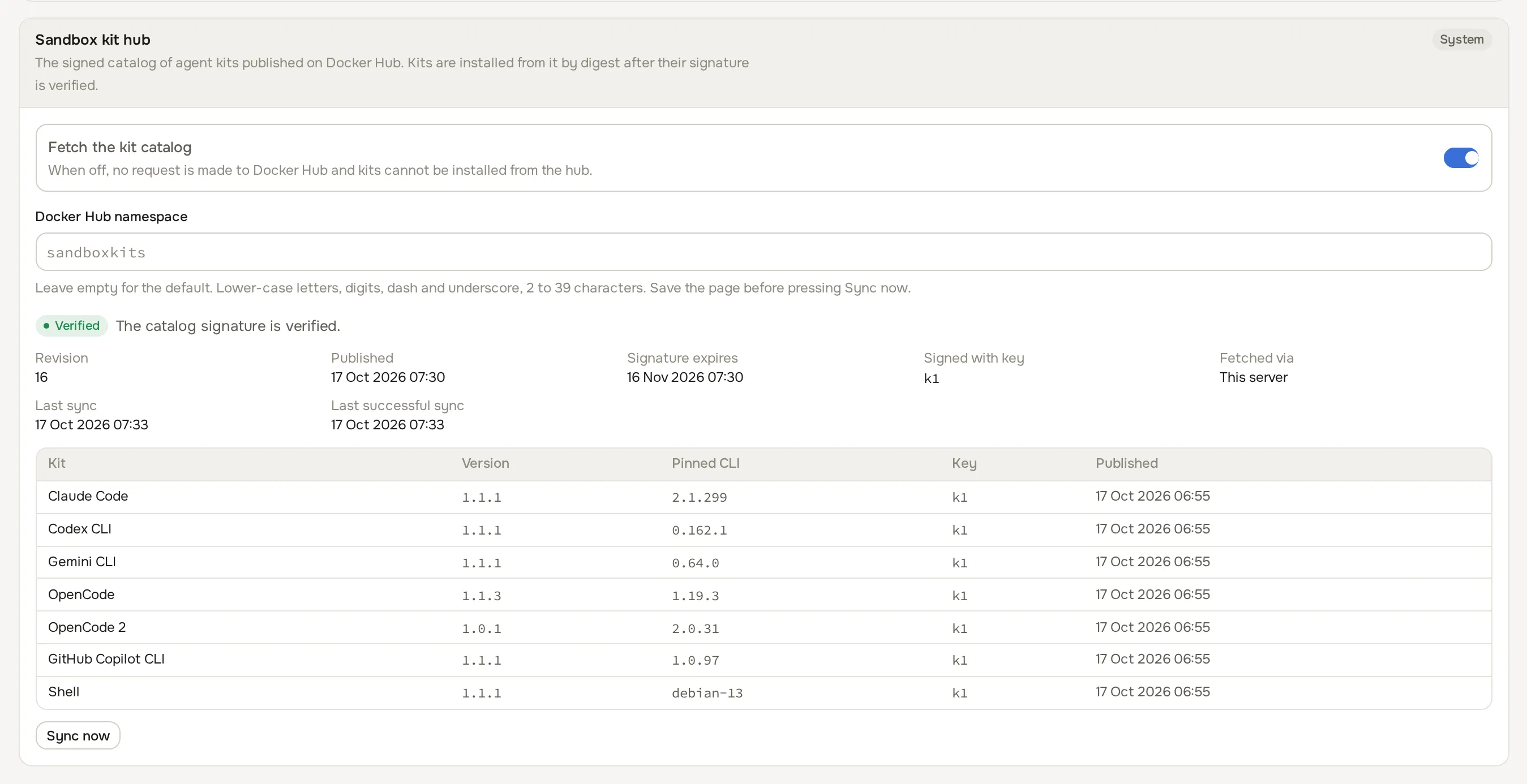
The same status strip appears on the Kits list. It shows whether the catalog is Verified, Expired, Not trusted or No catalog, its revision, when it was last fetched, and whether it was fetched by This server, through a Registry mirror, or Relayed by node (see below).
Your panel accepts a catalog and kit metadata that carry a valid signature from a key built into the panel, and refuses one older than the newest it has already accepted. Trust is re-evaluated on every look, not remembered:
- Verified: the catalog is current and every kit in it checks out. Installs are allowed.
- Expired: the catalog’s validity window has passed. It is still displayed, but no install is allowed until a fresh catalog is fetched.
- Not trusted: a signature or key check failed. Nothing is installed from it.
- No catalog: no catalog has been fetched yet.
A failed check never changes what is already installed.
Rate limits and relays
Section titled “Rate limits and relays”Docker Hub limits anonymous requests per source address. When your panel is rate limited it waits the time Docker Hub asks for, and may ask one deployable sandbox node (one that reports relay support) to fetch the same bytes for it. The panel verifies everything itself; a relay node carries bytes and is never trusted. A relay works with the default namespace. If no node can help, the sync reports why and tries again later.
Pull retries
Section titled “Pull retries”Agent kits are pulled anonymously from Docker Hub by the node that builds them. When a pull fails because of a rate limit or an unreachable registry, the build is retried automatically: up to 8 attempts inside 45 minutes, with a growing delay that never undercuts the wait Docker Hub asked for. The kit’s row shows the state, for example “Rate limited by Docker Hub, retrying at
Build from the bundled Dockerfiles
Section titled “Build from the bundled Dockerfiles”Each panel release also ships the Dockerfiles of the agent kits. You can build from them by hand: tick Build from the bundled Dockerfiles (unsigned, built locally) in the install modal, or use Retry from bundled Dockerfile on the row menu of a failed or pull-failed platform kit. The system never falls back to this path on its own.
A bundled build is labelled unsigned, built locally everywhere it appears, because nothing vouches for it beyond your own panel. The tools gateway support of the kit is taken from the kit files in that case.
Install a candidate on a test panel
Section titled “Install a candidate on a test panel”Before a new kit image is published as current, you can try the exact image on a test panel without any customer seeing it.
- On the publishing machine, stage the image. This prints its digest.
- In the install modal, tick Install as a candidate for the tool gateway gate and paste the staged image reference with its
sha256:digest into Staged image. A tag is refused. An administrator installs one candidate kit per request, using its exact staged image digest. - The candidate builds as a separate version of the kit, marked
candidate. It never becomes the kit’s current version and is not shown to customers. - To try it, sign in as an administrator, impersonate a test customer, and open the launcher. A kit with a candidate version and no published version appears with a Candidate badge. Choose the kit and the launcher selects its candidate version.
The same install is available from the command line:
php artisan microvm:kit-install <slug> --candidate --image docker.io/sandboxkits/<slug>-image@sha256:<digest> [--location <id or name>]Open a kit
Section titled “Open a kit”Click a kit to open its detail page, which has three tabs: Kit, Shell agent and Versions. The page opens on Kit.
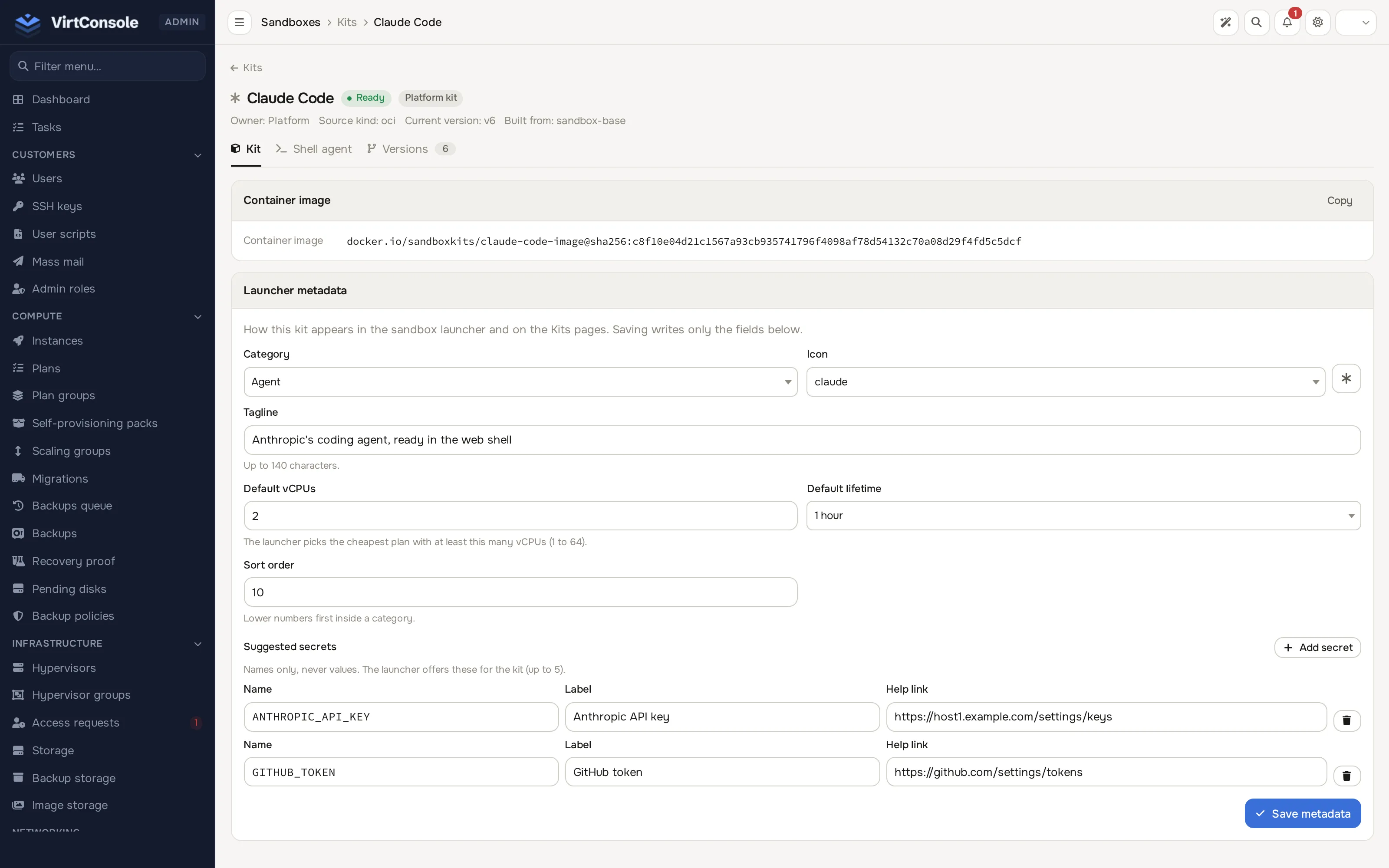
Edit the kit’s launcher metadata.
Shell agent
Section titled “Shell agent”This tab controls whether the kit includes envd (the agent behind the interactive shell and the E2B SDK’s command and file operations). The card explains the current effective value (capable or not capable) and how it was derived, then offers an Override dropdown:
- Inherit (derive from lineage/name): the platform’s own derivation. A platform base kit is capable when it is
sandbox-baseor is marked as including envd; a kit built on an envd-capable base kit is capable. - Force yes - capable
- Force no - not capable
Pick a value and click Save. Use the override to correct a case the automatic derivation gets wrong.
Versions
Section titled “Versions”Lists every build of the kit with its version number, status (ready, building, pending or error) and template version. The row for the current version shows a current badge; any other ready version shows a Set as current button that promotes it without waiting for a new build.
What happens next
Section titled “What happens next”Promoting a version or changing envd capability takes effect immediately for new sandboxes; it never touches a sandbox already running an older version.
Common problems
Section titled “Common problems”- Sync fails. The manifest could not be fetched or its signature did not verify; nothing is written on a failed sync. Check outbound connectivity to
packages.virtconsole.comand to Docker Hub. - “The kit catalog cannot be used right now.” The catalog is expired or not trusted. Press Sync now; if it stays that way, check the status strip for the last error.
- “The kit catalog is switched off in the settings.” Turn on Fetch the kit catalog under Settings > System > Sandbox kit hub.
- An agent kit is stuck retrying. Docker Hub is rate limiting your address. The retry line shows when the next attempt runs; wait for it.
- A customer’s shell ingress will not enable even though their Dockerfile is
FROM sandbox-base. Confirm that is really the final stage of a multi-stage Dockerfile; the finalFROMis the one that counts. Force capability on from this page if the build genuinely carries envd another way.