

Agent kits
An agent kit is a sandbox kit with an AI coding agent already installed and pinned to a tested version. You launch it, open the web shell, and the agent is ready, with the API keys you chose already in its environment. Each kit sits on the same Debian 13 base with git, Python and Node, so the agent can clone a repository and run code in an isolated machine instead of on your laptop.
Before you begin
Section titled “Before you begin”- Your provider has installed the agent kits. If they have not, the launcher says “No agent kits are installed” and starts with an operating system kit; ask your provider to install them.
- An API key from the agent’s vendor (see the table), saved as a secret or ready to paste.
The kits
Section titled “The kits”The Kits page lists them under the Agents filter.
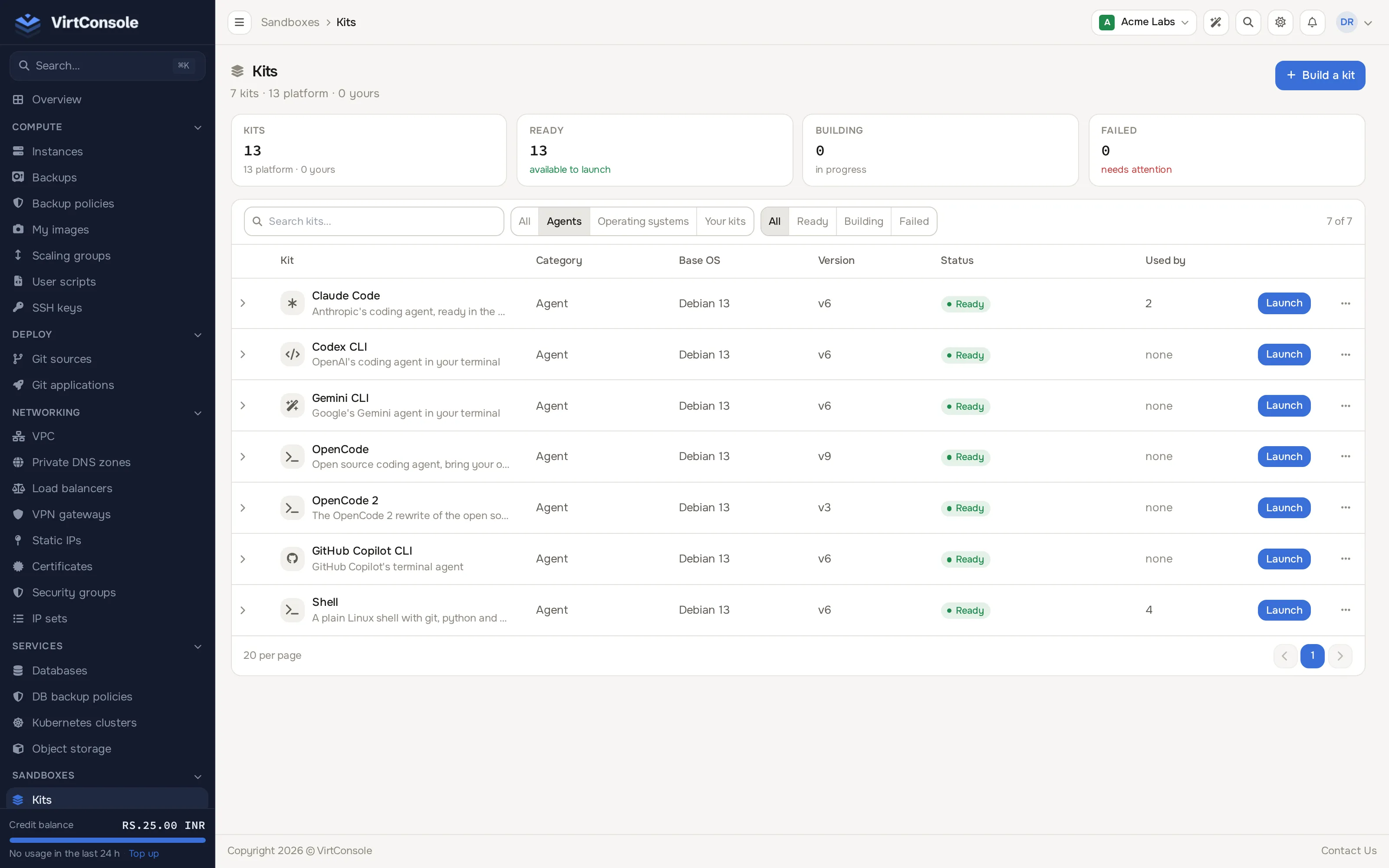
| Kit | What it is | Key it asks for |
|---|---|---|
| Claude Code | Anthropic’s coding agent, ready in the web shell. | Anthropic API key |
| Codex CLI | OpenAI’s coding agent in your terminal. | OpenAI API key |
| Gemini CLI | Google’s Gemini agent in your terminal. | Gemini API key |
| OpenCode | The open source coding agent (1.x line), bring your own model. | Fireworks, OpenRouter, Anthropic, OpenAI, Gemini, DeepSeek or Kimi API key |
| OpenCode 2 | The OpenCode 2 rewrite of the open source coding agent, bring your own model. | The same provider keys as OpenCode |
| GitHub Copilot CLI | GitHub Copilot’s terminal agent. | A GitHub token with the Copilot Requests permission |
| Shell | A plain Linux shell with git, Python and Node, and no agent. | None |
Every kit also accepts a GitHub token for repository access (see The GitHub token). Agent CLIs are installed from each vendor’s own channel when your provider builds the kit, at a pinned version, so a vendor update never changes a kit underneath you. New kit versions are installed by your provider; the launcher’s kit picker lets you choose an older version if you need one.
Launch an agent
Section titled “Launch an agent”- Go to Sandboxes > Sandboxes and click Launch.
- Click the kit in the sentence and pick the agent kit.
- Click the secrets part of the sentence (the with part) and tick the API key for that agent. See Secrets and API keys.
- Pick a location and size, and a lifetime. Agent kits default to 1 hour.
- Click Launch, then open the sandbox’s Shell tab and start the agent from the prompt.
Secrets and API keys
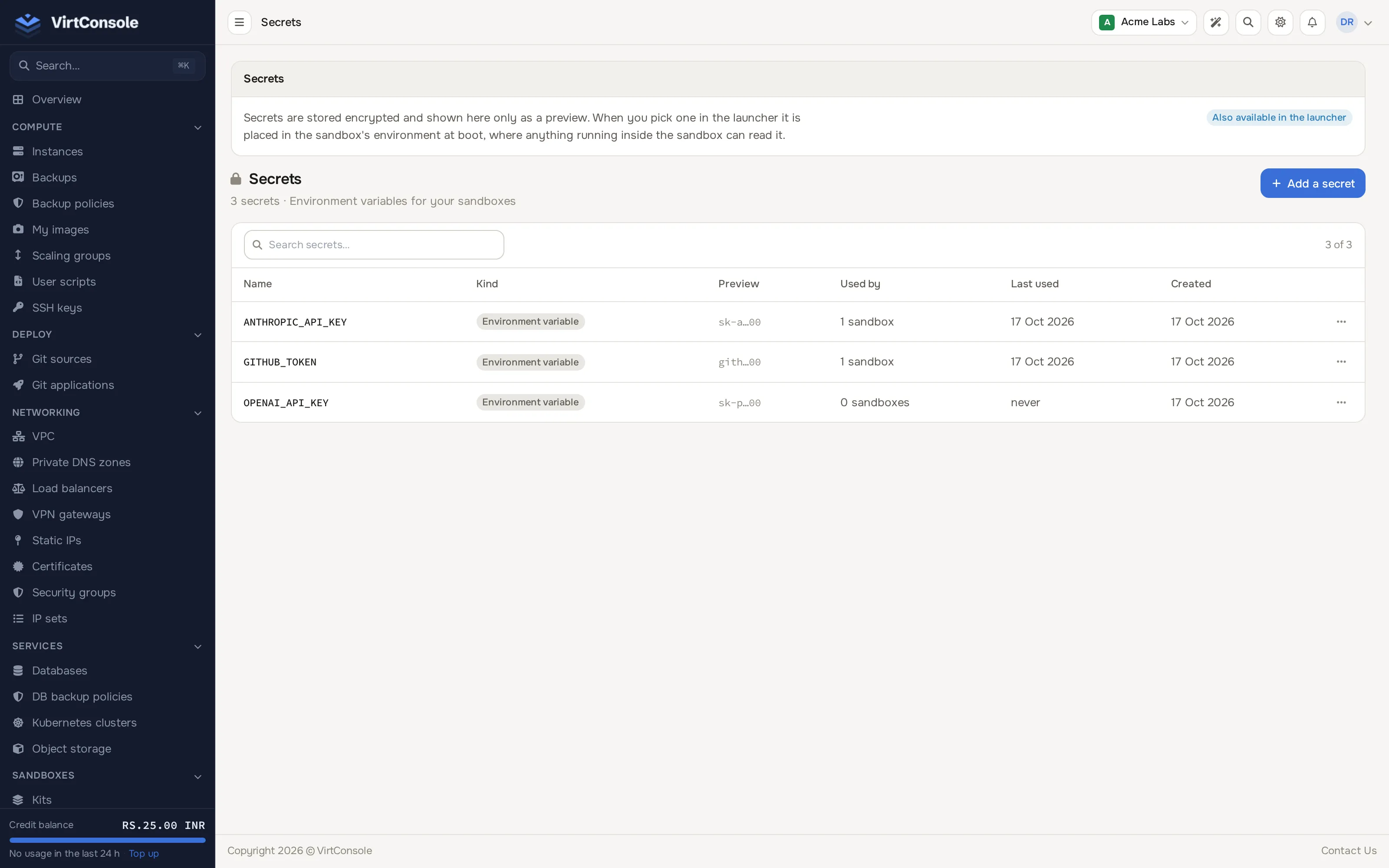
Section titled “Secrets and API keys”A secret is a named value, such as ANTHROPIC_API_KEY, kept encrypted in your account. When you launch, the secrets you tick become environment variables inside the sandbox, so the agent finds its key without you pasting it each time.
Where secrets live
Section titled “Where secrets live”Go to Sandboxes > Secrets to see, add, replace and delete your secrets. A secret has a name (capital letters, digits and underscores, like OPENAI_API_KEY) and a value. The value is write-only: the panel never shows a saved value back to you. You can save a secret from the launcher too, without leaving the page.
Choosing secrets in the launcher
Section titled “Choosing secrets in the launcher”Click the with part of the sentence. The popover lists:
- Provider rows for the keys this kit suggests, each with the vendor’s mark. Tick a saved key to use it, or add one in place. A provider row is optional: “Launches without it; you can also set it inside the sandbox later.”
- Other saved secrets, anything else in your account that you want in this sandbox.
- A replace link on each saved secret. Replacing changes the secret for every sandbox you launch afterwards on your account (a sandbox that is already running keeps what it was started with), and the panel warns you before it does.
Custom keys and values
Section titled “Custom keys and values”For a value that is not a saved secret, open Advanced options > Environment and add key-value pairs. They are merged with the kit’s own defaults. A key you set there overrides the kit’s value, and it also overrides a picked secret with the same name.
When they take effect
Section titled “When they take effect”Secrets and variables are written into the sandbox when it is created. Changing them later does not reach a sandbox that is already running; start a new run for the change to take effect. They are visible in a login shell (the web shell, bash -l), but not to a non-login command such as ssh host cmd. If the node running your sandbox is too old to deliver them, the launch is refused with a message saying so rather than starting a sandbox without its keys.
The GitHub token
Section titled “The GitHub token”The last line of the launch sentence reads Add [a GitHub token] for repo access., or Using [your GitHub token] for repo access. once one is picked. It shows for every kit, because git works the same way in all of them.
- Click the token in that line.
- Paste a personal access token, or choose Use my saved GitHub token. Fine-grained tokens work; grant them access to the repositories this sandbox needs and no others.
- The token is stored encrypted as the secret
GITHUB_TOKENand reused for every kit.
Inside the sandbox, git signs in to github.com with that token automatically, so git clone and git push over HTTPS work without a prompt. The helper is registered for github.com and sends the token to that host. Replacing the token changes it for every sandbox you launch afterwards.
Registry credentials for private kits
Section titled “Registry credentials for private kits”If you build a kit from a container image in a private registry, the build needs a pull credential. It is saved as a registry secret and picked on the kit’s Private registry credential field; it is never given to a sandbox as an environment variable and does not appear in the launcher’s secrets list. The Secrets page lists registry credentials separately. For a Docker Hub credential it offers Check pull limit, which shows how many pulls remain in the current window as seen from your provider’s panel. See Private registries.
Tools for the agent
Section titled “Tools for the agent”Agent kits can be given external tool servers through the tools gateway. See Tools (MCP).
Common problems
Section titled “Common problems”- The agent asks you to sign in even though you picked a key. The key was not ticked at launch, or it was added after the sandbox started. Secrets reach a sandbox when it is created; start a new run.
- The agent says the key is invalid. Check the key at the vendor, then use replace on the saved secret and launch again.
git cloneof a private repository asks for a password. No GitHub token was picked, or it does not have access to that repository.- GitHub Copilot CLI cannot authenticate. It needs a fine-grained personal access token with the Copilot Requests permission, given as the Copilot token; an ordinary classic token does not work.
- The launcher opened on an operating system, not an agent. No agent kit is ready yet: they may still be building, or your provider has not installed them.