

Block Storage volumes
A volume is a chunk of disk that lives independently of any instance. Attach it to an instance, detach it later, move it to another instance, or resize it, all without losing the data on it. A volume survives the instance it was attached to.
Volumes are billed hourly from creation until deletion, attached or not.
Before you begin
Section titled “Before you begin”- Your provider has enabled block storage in at least one location. If Block storage is missing from the sidebar’s Services group, contact your provider.
- Enough credit balance for the plan’s hourly rate.
Where to find it
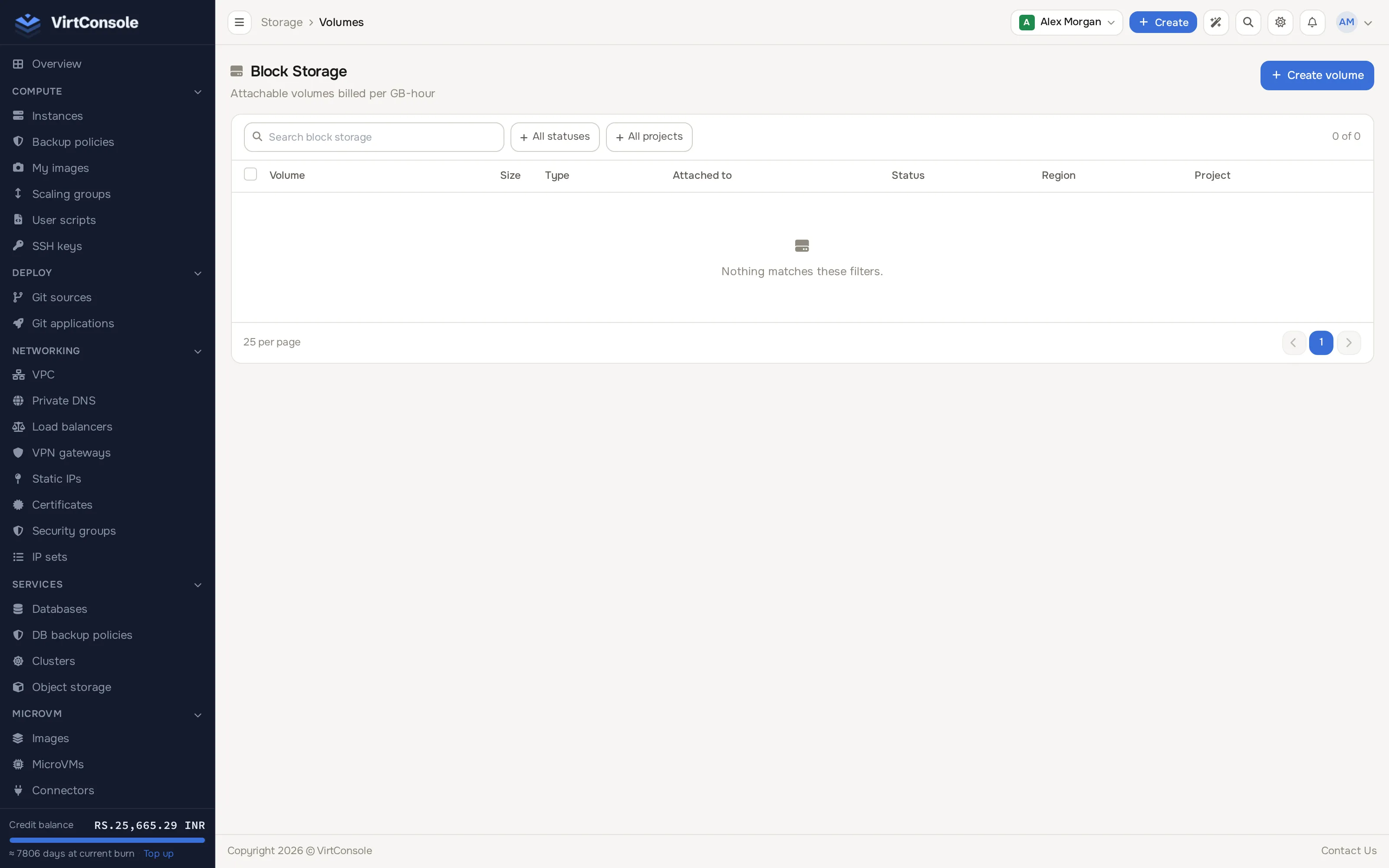
Section titled “Where to find it”Click Block storage in the sidebar’s Services group.
Create a volume
Section titled “Create a volume”Click Create volume. This opens a two-step page: Location (“Data center”), then Volume (“Plan and name”).
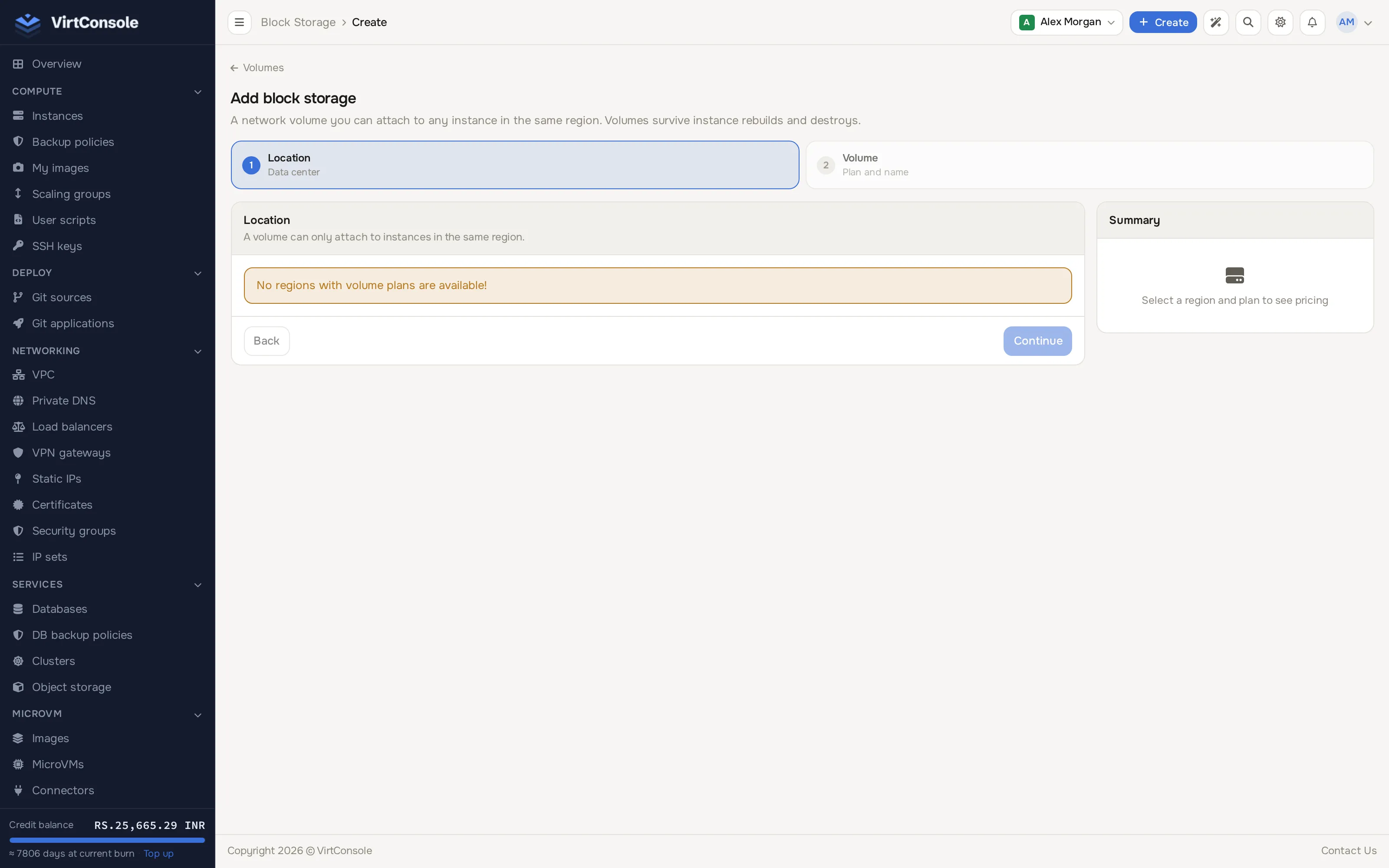
- Location: pick the data center. Only locations with block storage enabled appear; a volume can only attach to instances in the same region. Click Continue.
- Volume: pick a plan card (storage class, size and price) and enter a Name, for example
postgres-data. Size can be increased later without downtime; it cannot be reduced.
Check the summary and click Create volume.
Volumes usually become Available within a few seconds. Statuses: Available, Attached, Creating, Resizing, Detaching, Error.
Attach a volume
Section titled “Attach a volume”From the volumes list: click Attach on an Available volume, pick an instance in the same location, and confirm. From an instance: open its manage page, go to Volumes, pick an available volume and click Attach.
The volume appears inside the instance as a block device (for example /dev/xvdb), and the device name shows in the table.
An instance can have up to 23 volumes attached.
Detach a volume
Section titled “Detach a volume”Click Detach on the volumes list or the instance’s Volumes section.
Resize a volume
Section titled “Resize a volume”- Click Resize on the volume.
- Pick a different plan.
- Click Resize.
If the new plan is smaller than the current size, the dialog warns that data loss may result and asks you to confirm with Resize Anyway.
Operations finish when the node confirms
Section titled “Operations finish when the node confirms”Attach, detach, resize and delete are accepted when the request is recorded. The volume keeps its current status while the node works, and the operation appears as a task (for example Attach volume) until the node confirms it. Its size, plan, attachment or existence changes at that moment, not before. If the node reports a failure, the task fails and the volume keeps its previous state, so what the panel shows is what is on the node.
Through the API, a 200 on these four requests means the operation was recorded. Read the volume afterwards: active_operation names the operation while it is pending, and the desired state (new size and plan, new attachment, or a 404 for a deleted volume) appears when it completes. The OpenTofu provider and the MCP server wait for this confirmation for you.
When a volume cannot take a request, the API answers with a status and a reason you can branch on:
| Situation | Status | reason |
Extra |
|---|---|---|---|
| Another operation is running on the volume | 409 |
volume_busy |
|
| The volume finished an operation in the last 5 minutes | 429 |
volume_cooldown |
Retry-After header with the seconds left (1 to 300) |
| Three volume operations of your account are already running | 429 |
account_inflight_limit |
No Retry-After |
| Plan limit for snapshots or backups reached | 409 |
volume_snapshot_limit or volume_backup_limit |
Wait for Retry-After seconds and send the request again. See the API changelog.
Snapshots and backups
Section titled “Snapshots and backups”Open a volume to find its Snapshots & Backups section:
- Snapshot: a point-in-time mark on the volume’s own storage. Created in seconds; cheap. A safety net before a risky change.
- Backup: a full copy written to separate backup storage. Slower, but survives a total loss of the volume’s storage.
Take one with Take Snapshot or Create Backup, or schedule them with a volume protection policy. Restoring offers two choices: Roll back this volume (overwrites the volume; blocked while attached to a running instance) or Restore to new volume (creates a fresh volume, leaving the source alone).
Guard rails: one operation at a time per volume, a 5-minute cooldown between operations, per-plan caps on how many snapshots and backups you can keep, and a limit of three operations in flight across all your volumes. Snapshots and backups are full-only (no incremental chains) and may carry a per-GB monthly charge depending on your provider’s pricing.
Delete a volume
Section titled “Delete a volume”The volume must be Available (detached). Click Delete and confirm.
Common problems
Section titled “Common problems”- The volume is stuck in Creating. Check the tasks on the volume page; the storage backend may be temporarily unavailable. Delete and recreate, or contact your provider.
- Cannot attach. The volume must be
Available, in the same location as the instance, and the instance must have fewer than 23 volumes. - The volume is not visible inside the OS. Run
lsblkorfdisk -l; the device name from the panel maps to/dev/<name>. Format it before use. - “Volume is busy with operation” or a cooldown message. Wait for the current operation or the 5-minute countdown to finish.
- “Snapshot limit reached.” Delete an old snapshot or backup first, or ask your provider about a plan with a higher cap.