

Create a kit
A kit is the template a sandbox launches from. Build one, then launch sandboxes from it. Every build produces a new version, so you can update a kit without breaking sandboxes already running an older version.
Ready-made kits for AI coding agents are installed by your provider; see Agent kits. This page is about building your own.
Before you begin
Section titled “Before you begin”- A sandbox node must be available in at least one location. If Sandboxes > Kits is not in your menu, your provider has not enabled sandboxes for your account.
- For a Git repository source, connect a Git source beforehand if the repository is private. See Connectors for the Git source connection, or connect one from Deploy > Git sources if your provider also offers Git Deploy.
Where to find it
Section titled “Where to find it”In the user panel go to Sandboxes > Kits.
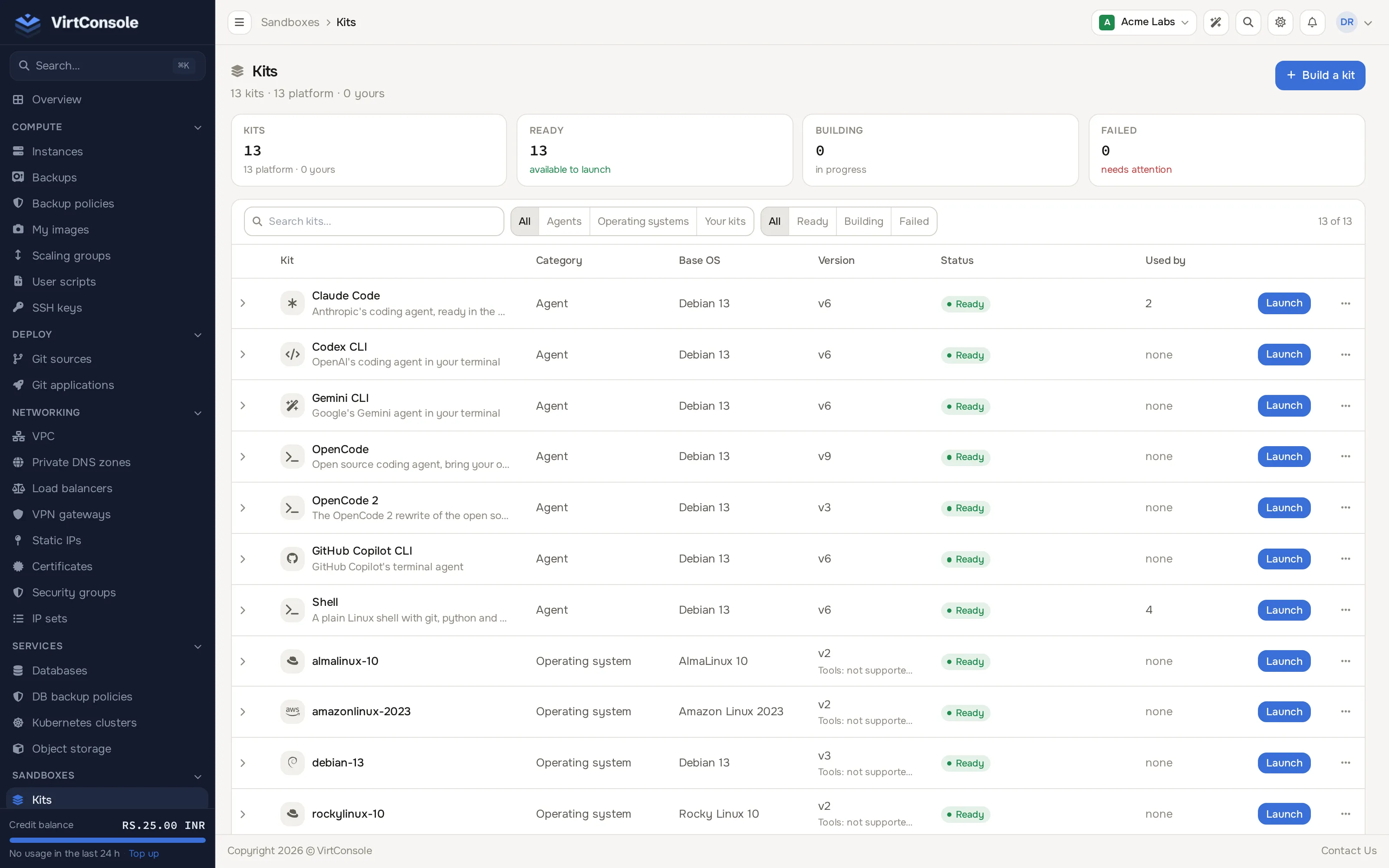
The list shows every kit you can launch, with its versions. Kits installed by your provider are badged Platform; yours are badged Custom. A platform agent kit that was built locally from files bundled with the panel, rather than installed from the signed catalog, is marked unsigned, built locally.
Build a kit
Section titled “Build a kit”Click Build a kit (or Build your first kit) to open the wizard. It has four steps: Source (What to build), Runtime (Env and hooks), Build (Where to build) and Review (Confirm), with a live summary on the right.
-
Source: give the kit a Kit name and an optional Description, then choose Build from:
- Dockerfile: write or paste a Dockerfile.
- Container image: enter an existing image reference, for example
ghcr.io/acme/demo:latest. If the image is private, see Private registries below. - Git repository: enter the Repository URL and Branch. For a private repository, expand Private repository and pick an already-connected Git source instead of a bare URL.
Whichever source you choose, pick a Base kit from the platform’s ready base kits - it is required for every source type, not just Dockerfile. See Platform base kits for what each one provides.
-
Runtime: add Environment variables as key-value pairs. These are the kit’s defaults; a sandbox launched from it can add its own variables, and a sandbox variable overrides a kit variable with the same name. Optionally expand Lifecycle hooks:
run,resume,suspendandterminate, each with a timeout and a payload, called on the port you set; every sandbox launched from this kit starts with them, and a sandbox can override its own copy later. Separately, expand Build hooks (readyandvalidate, each with its own timeout) to run a check once during the build itself, before the version is marked ready. -
Build: pick the Location to build on. The kit is built once there and can run anywhere your plan allows.
-
Review: check the summary, then click Create kit. The build starts immediately.
Builds usually finish in one to three minutes, and progress streams on the kit page while you keep working.
Private registries
Section titled “Private registries”If your container image lives in a private registry, the build needs a credential to pull it. Credentials are kept as saved secrets, never typed into the build itself:
- In Build from > Container image, enter the image reference.
- Expand Private registry credential (Optional). The picker lists the credentials you saved for that image’s registry.
- To add one, click Add a registry credential and fill in Name (capitals, digits and underscores), Registry (for example
docker.io), Username and Access token, then Save credential.
A credential is tied to one registry. It is used to pull that registry’s images for your kits, and it is never available to a sandbox as an environment variable. You cannot change its registry while a kit uses it. If it is deleted, or no longer matches the image’s registry, the next build fails with a clear message and nothing is sent to a node. If you see “Registry credentials are not enabled on this installation yet”, your provider has not turned the feature on.
Docker Hub limits anonymous pulls, so a credential also protects your builds from the shared limit.
What happens next
Section titled “What happens next”The kit is created with an initial version in building status. A build runs on a sandbox node and produces a ready version on success, or an error version with a build log on failure. Ready is required before any sandbox can use the kit. Retry build on a failed version starts it again.
Versions
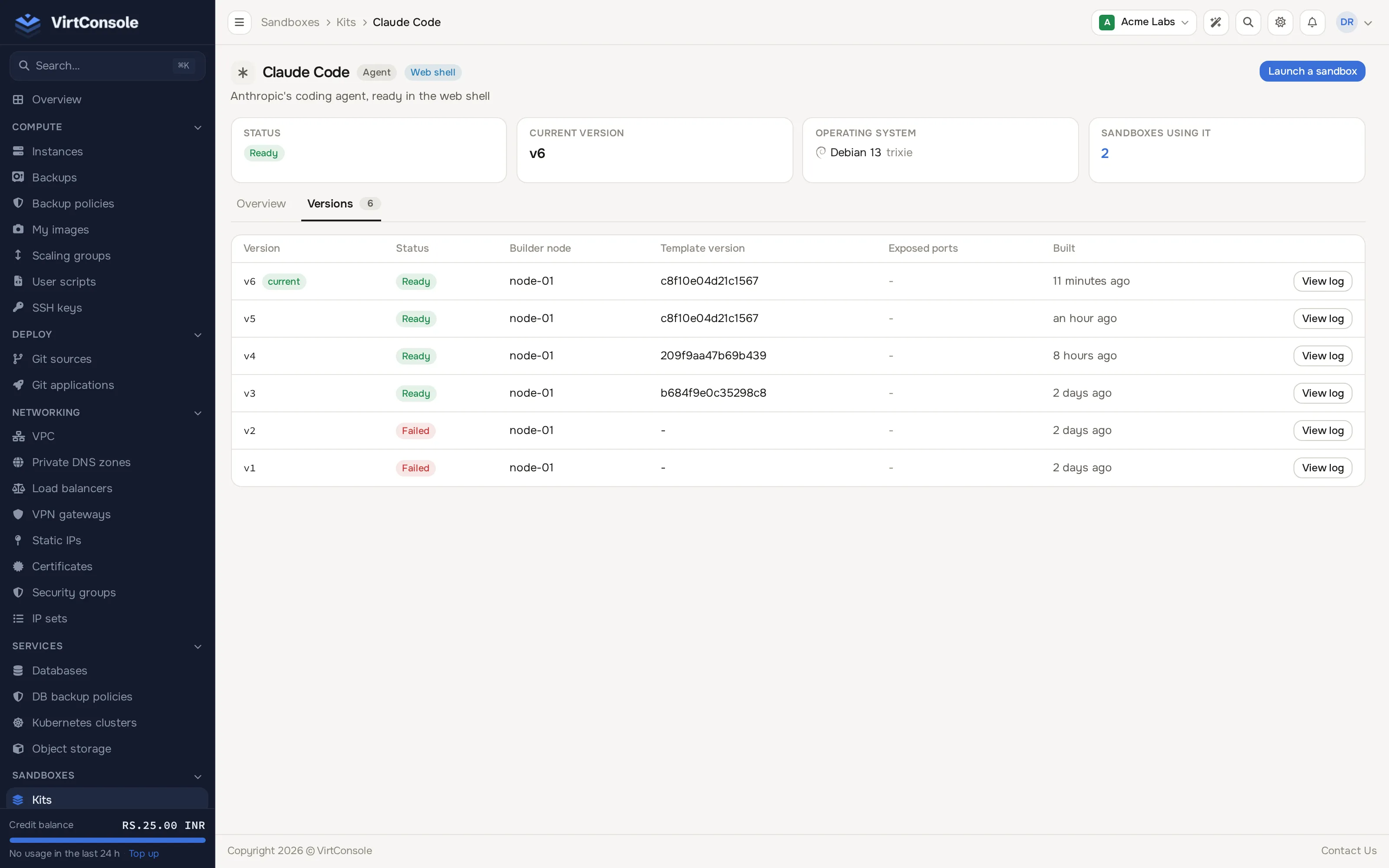
Section titled “Versions”Open the kit to see its Versions tab: each row shows the version number, its status, the node that built it, the template version it was built from, its exposed ports and when it was created. Click View log on a row to see its full build output. Rebuilding the kit (from the kit page’s Build new version button) adds a new version rather than replacing the current one; the newest ready version becomes current automatically.
The interactive shell agent
Section titled “The interactive shell agent”Every kit is built on top of a base kit, and it is the base - not your source type - that decides whether the result includes envd, the agent that powers the web shell and the E2B SDK’s command and file operations. sandbox-base, debian-13, ubuntu-24.04 and ubuntu-26.04 ship envd; app-base, runner-base, builder and the other operating-system bases do not, so a sandbox launched from a kit built on one of those cannot enable shell ingress, regardless of whether you built it from a Dockerfile, a container image or a Git repository. See Platform base kits for the full list, and Web shell, logs and metrics.
Common problems
Section titled “Common problems”- The build fails immediately. Check the version’s build log from the Versions tab; a Dockerfile syntax error or an unreachable base are the most common causes.
- A private Git repository or registry fails to pull. Confirm the connected Git source still has access, or that the registry credential is correct and has pull access to that image.
- “Rate limited” on a pull. The registry is limiting anonymous pulls from your provider’s address. Add your own registry credential to the kit and retry.
- Shell ingress is greyed out when launching. The kit was built on a base that does not ship envd. Rebuild it on
sandbox-base,debian-13,ubuntu-24.04orubuntu-26.04. - The Tools control says “Tools: not supported by this version”. That kit version does not register tool servers with its agent. Pick an agent kit that does, or see Tools (MCP).