

Reverse DNS
Reverse DNS (rDNS) maps a public IP back to a hostname: 203.0.113.7 answers vm-12.example.com. Mail servers, abuse reports, and reputation systems check it. The panel writes PTR records to an upstream DNS provider, PowerDNS or ClouDNS, in reverse zones you add one by one.
Set it up in four steps
Section titled “Set it up in four steps”- Add the DNS provider.
- Add each reverse zone, either by importing a zone that already exists or by letting the panel create it.
- Link each subnet to its zone.
- Delegate the zone at your RIR.
Before you start, read Which zone covers which subnet. A zone that does not contain the subnet’s addresses is the most common reason PTR records end up with wrong names.
1. Add the DNS provider
Section titled “1. Add the DNS provider”In the admin panel go to Media & DNS > DNS providers and click Add provider. The Add DNS Provider dialog opens.
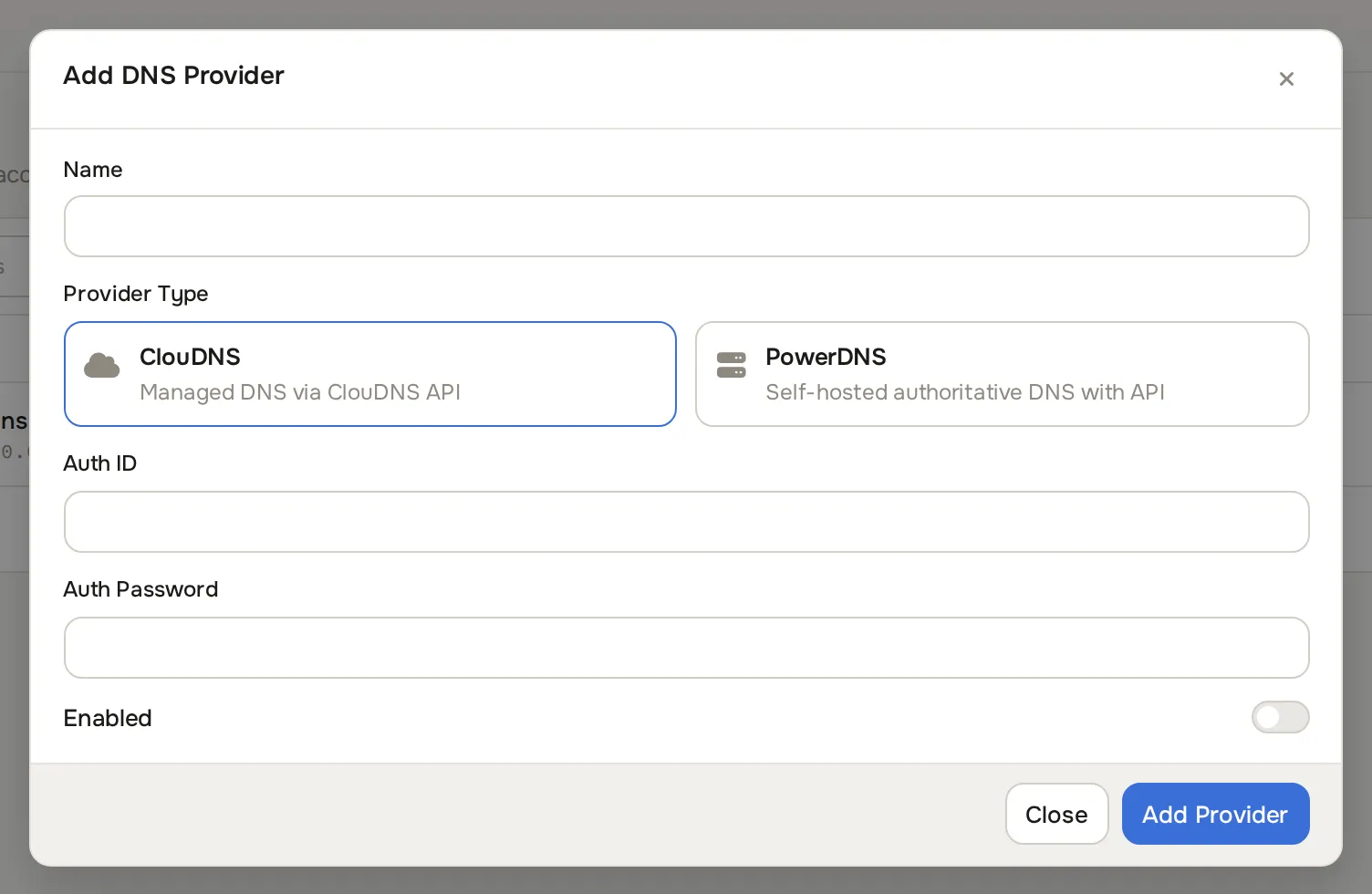
| Field | What to enter |
|---|---|
| Name | A label, for example primary-dns. |
| Provider Type | ClouDNS (managed DNS via the ClouDNS API) or PowerDNS (self-hosted authoritative DNS with API). |
| ClouDNS: Auth ID, Auth Password | Your ClouDNS API credentials. |
| PowerDNS: Hostname, Port, API Key | The API endpoint with its scheme, for example http://203.0.113.10, the API port, for example 8081, and the API key. |
| Enabled | Toggle. |
Click Add Provider.
For PowerDNS, the panel always talks to the server id localhost in the PowerDNS API (/api/v1/servers/localhost/...). That is the PowerDNS default and cannot be changed in the panel. To run your own PowerDNS servers, see PowerDNS cluster.
2. Add each reverse zone
Section titled “2. Add each reverse zone”Each reverse zone is added separately. Go to Media & DNS > Reverse DNS zones and click Create Zone. The Add Reverse Zone dialog opens.
| Field | What to enter |
|---|---|
| Zone Type | IPv4 (reverse zone under in-addr.arpa) or IPv6 (under ip6.arpa). |
| Zone | The zone name without the suffix. The suffix is appended for you: enter 113.0.203 for 113.0.203.in-addr.arpa. |
| Provider | The provider that hosts the zone. |
| Use the existing zone on the provider | On to import a zone that already exists (case A below). Off to let the panel create it (case B). |
| Auto PTR Format | Format 1 to 4. A live preview shows the PTR generated for 203.0.113.5. Used for IPv4 only. |
| Prefix / Domain | The pieces used by the auto PTR format. Both are required. |
| PowerDNS, case B only: Hostmaster Email, TTL, ns1 to ns4 | SOA and nameserver values for the new zone. |
| Enabled | Toggle. |
Then follow the case that applies to you.
Case A: the zone already exists on the provider
Section titled “Case A: the zone already exists on the provider”Use this when the reverse zone is already on your PowerDNS server or ClouDNS account, for example after moving from another panel.
- Fill in Zone Type, Zone, Provider, Auto PTR Format, Prefix and Domain.
- Switch on Use the existing zone on the provider.
- Click Adopt Zone.
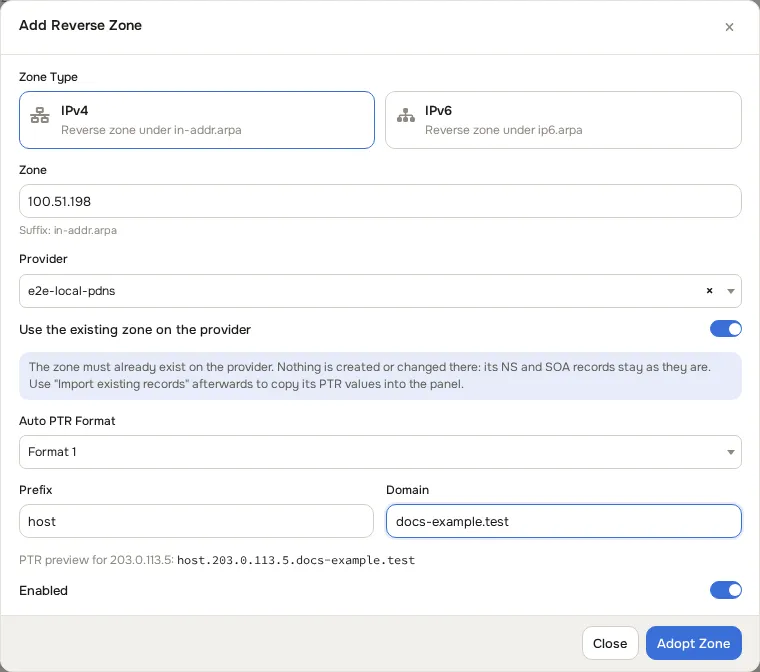
The panel only checks that the zone exists and creates its own record. Nothing is created or changed on the provider: the zone’s NS and SOA records stay as they are, and the PowerDNS hostmaster, TTL and nameserver fields are hidden. On success the panel shows “Existing zone adopted. Nothing was changed on the DNS provider.”
The panel refuses to adopt when:
- the zone is not on the provider: “The zone … does not exist on the DNS provider. Create it there first, or add it here without the “use existing zone” option.”
- another reverse zone entry already manages it: “This provider zone is already managed by another reverse DNS zone entry.”
- the provider cannot be reached: “The DNS provider could not be reached or did not answer the request.”
To copy the zone’s existing PTR records into the panel, link the subnets (step 3) and then run Import existing records.
Case B: let the panel create the zone
Section titled “Case B: let the panel create the zone”Leave Use the existing zone on the provider off and click Add Zone. The panel creates the zone on the provider.
For PowerDNS:
- Enter at least two nameservers in ns1 and ns2 (ns3 and ns4 are optional). The panel refuses to create a PowerDNS zone with fewer than two.
- Enter a Hostmaster Email. It goes into the zone’s SOA record, and the panel refuses to create a PowerDNS zone without it. The panel checks the address for a valid domain.
- Both checks run before the panel contacts PowerDNS, so a refused create changes nothing on the provider. Neither applies when you adopt an existing zone (case A).
- The new zone gets an NS record set with exactly these nameservers, and an SOA that names the first of them as the primary.
Editing a zone later (Edit in the row menu) changes only the panel record. New nameserver, hostmaster or TTL values are not sent to the provider.
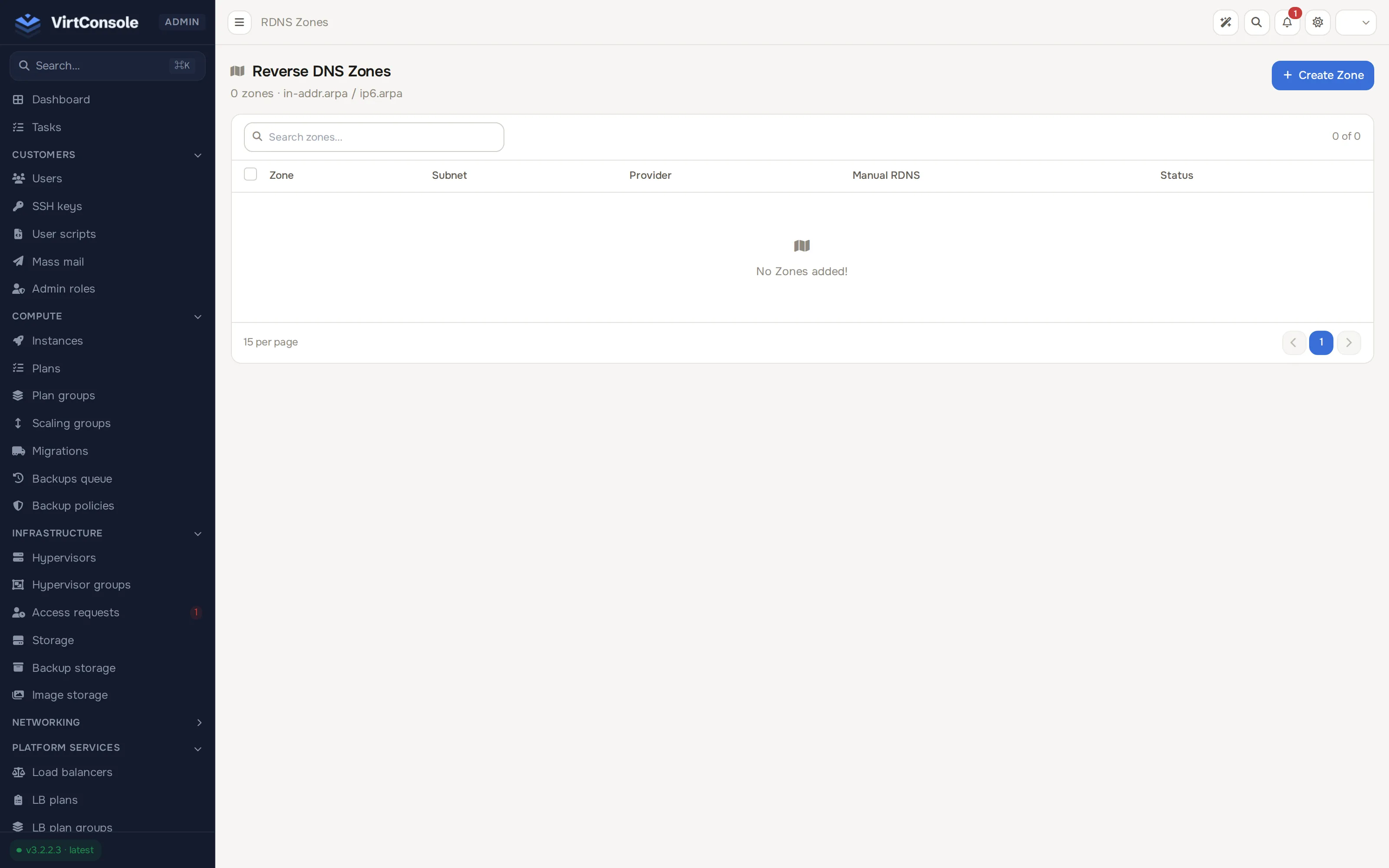
The zone list shows each zone, its linked subnets, its provider, a Manual RDNS toggle, and status.
3. Link each subnet to its zone
Section titled “3. Link each subnet to its zone”Open the subnet under Networking > Subnets. In the Assignment card:
- RDNS Zone. Pick the reverse zone that contains this subnet’s addresses.
- Auto-rDNS. Optional. On deploy, set the primary public IP’s PTR to the instance hostname. Needs an enabled RDNS zone. Base domain qualifies bare hostnames, for example
clients.example.com.
Click Update Subnet. A subnet links to one zone. The panel refuses a zone that does not contain the subnet, or that serves the other address family (an IPv6 zone on an IPv4 subnet, or the reverse). See the rules below and Subnets and IP addresses.
The check runs when you pick a different zone, and when the address range of a subnet that has a zone changes. Saving other fields of a subnet whose existing link does not match still works, so you can fix the link when convenient. For a subnet whose netmask and gateway do not describe a block, the panel checks the subnet’s IP addresses against the zone instead: every IPv4 /32 and IPv6 /128 subnet (whatever its gateway, for example a single failover IP), an IPv6 subnet with a link-local gateway such as fe80::1, and older subnets whose gateway or netmask the panel cannot parse. A new subnet of that kind has no addresses yet, so only the zone itself is checked when it is created.
4. Delegate the zone at your RIR
Section titled “4. Delegate the zone at your RIR”The panel writes PTR records into the zone on your provider, but resolvers on the internet only find them once the reverse zone is delegated to that provider. Ask your RIR (RIPE NCC, ARIN, APNIC, LACNIC or AFRINIC), or the upstream that assigned you the addresses, to delegate the reverse zone to the zone’s nameservers: the ns1 to ns4 values for a PowerDNS zone, or your ClouDNS nameservers.
The panel does not check delegation. A zone can look correct in the panel and on the provider while nothing resolves publicly. Check from outside your network, for example with dig -x 203.0.113.7.
Which zone covers which subnet
Section titled “Which zone covers which subnet”The panel writes each PTR record under a name derived from the address and the zone, so the zone must contain every address of the subnet.
IPv4: one /24 zone per /24
Section titled “IPv4: one /24 zone per /24”An IPv4 reverse zone must be exactly a /24, three octets: 113.0.203.in-addr.arpa for 203.0.113.0/24. The PTR record name inside the zone is the last octet of the address: 203.0.113.7 is written as 7 in that zone.
- A subnet of /24 or smaller (for example a /29) links to the /24 zone that contains it.
- A subnet larger than /24 (for example a /23) spans several /24 zones, but a subnet links to only one zone. The panel refuses to link it to any single /24 zone.
- Zones larger than a /24 (for example
0.203.in-addr.arpa) and classless zones (RFC 2317 names such as0/25.113.0.203.in-addr.arpa) are not supported.
IPv6: any nibble boundary that contains the subnet
Section titled “IPv6: any nibble boundary that contains the subnet”An IPv6 reverse zone can sit on any nibble boundary (a prefix length that is a multiple of 4) as long as it contains the subnet’s addresses. The PTR record name is the address’s 32 nibbles in reverse order, minus the zone suffix.
Worked example with the documentation prefix 2001:db8::/32. The subnet is 2001:db8:1:2649::/64.
- Write the /64 prefix out in full:
2001:0db8:0001:2649. - Take its 16 nibbles,
2 0 0 1 0 d b 8 0 0 0 1 2 6 4 9, and reverse them. - The /64 zone is
9.4.6.2.1.0.0.0.8.b.d.0.1.0.0.2.ip6.arpa. In the Zone field enter9.4.6.2.1.0.0.0.8.b.d.0.1.0.0.2.
A /48 zone that contains the same subnet is 1.0.0.0.8.b.d.0.1.0.0.2.ip6.arpa (the first 12 nibbles, 2001:0db8:0001, reversed). Either zone works for this subnet. The PTR record for 2001:db8:1:2649::10 gets these names:
| Zone | Record name inside the zone |
|---|---|
9.4.6.2.1.0.0.0.8.b.d.0.1.0.0.2.ip6.arpa (/64) |
0.1.0.0.0.0.0.0.0.0.0.0.0.0.0.0 |
1.0.0.0.8.b.d.0.1.0.0.2.ip6.arpa (/48) |
0.1.0.0.0.0.0.0.0.0.0.0.0.0.0.0.9.4.6.2 |
A zone that does not contain the subnet, for example a /64 zone for another /64, would receive records under wrong names.
A more specific zone shadows its parent
Section titled “A more specific zone shadows its parent”If one PowerDNS server holds both the /48 zone and a /64 zone inside it, queries for addresses in the /64 are answered from the /64 zone. Records written into the /48 zone for those addresses exist on the server but are never returned. Link each subnet to the most specific zone that exists for it on that server, or remove the child zone.
What Rebuild does
Section titled “What Rebuild does”Rebuild in a zone’s row menu (or Rebuild selected) runs a background task called Rebuild RDNS Zone that walks the IPs of every subnet linked to the zone and writes their PTR records to the provider. It needs at least one linked subnet.
- It only writes PTR records. It never changes the zone’s NS or SOA records and never deletes the zone.
- An address with a reverse DNS value in the panel gets that value.
- An IPv4 address with an empty value gets the zone’s Auto PTR Format. On PowerDNS that generated value is also stored in the panel.
- An IPv6 address with an empty value is skipped. There is no auto PTR format for IPv6.
- IPv6 subnet allocations (for example a /64 handed to one instance) are skipped. They are not single host addresses.
If the zone already holds PTR records you want to keep, run Import existing records first. Rebuild overwrites a provider record when the panel holds a different value for that IP, and when an IPv4 address has no value in the panel.
Import existing PTR records
Section titled “Import existing PTR records”For an adopted zone (case A), you can copy its PTR records into the panel so the panel shows the same hostnames as the provider. Link the subnets first: the import only matches records to IPs in subnets linked to this zone.
- On the zone list, open the row menu and choose Import existing records. The dialog reads the zone from the provider and compares it with the IPs in the linked subnets. Opening it changes nothing.
- Check the counts: Will import, Already the same, Differ from panel, No matching IP and Skipped. If no subnet is linked, the dialog says “No subnet is attached to this zone, so no record can be matched to an IP.”
- Under What to import, pick Fill empty only (the default, keeps values already in the panel) or Fill empty and overwrite differing.
- Click Import (or Import and overwrite). The import runs as the task Import RDNS Zone records; follow it under Tasks.
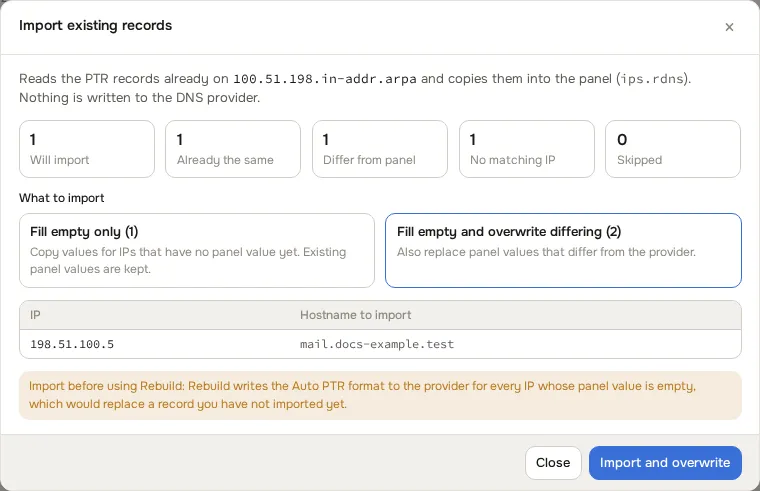
The import never writes to the provider, runs once per zone at a time, and is safe to repeat. A record is skipped when it is not a PTR, is disabled, has more than one value, is outside the zone, is not a full host address (for example the zone apex or a classless 0/25 label), belongs to the other address family, has an invalid hostname, or matches an address that exists in two linked subnets. IPv6 subnet allocations are never matched. On a very large ClouDNS zone the preview may scan only the first records and says so; the import itself processes every record.
Removing a zone
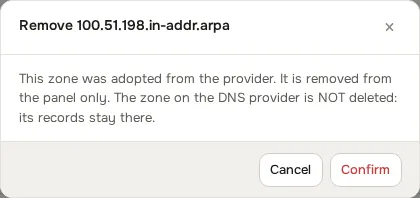
Section titled “Removing a zone”Removing an adopted zone deletes only the panel record. The zone and its records stay on the provider. Removing a zone the panel created also deletes it on the provider.
Approve customer requests
Section titled “Approve customer requests”With Manual RDNS on for a zone (the default), a customer’s rDNS change is queued for approval. With it off, the change is written to the provider at once.
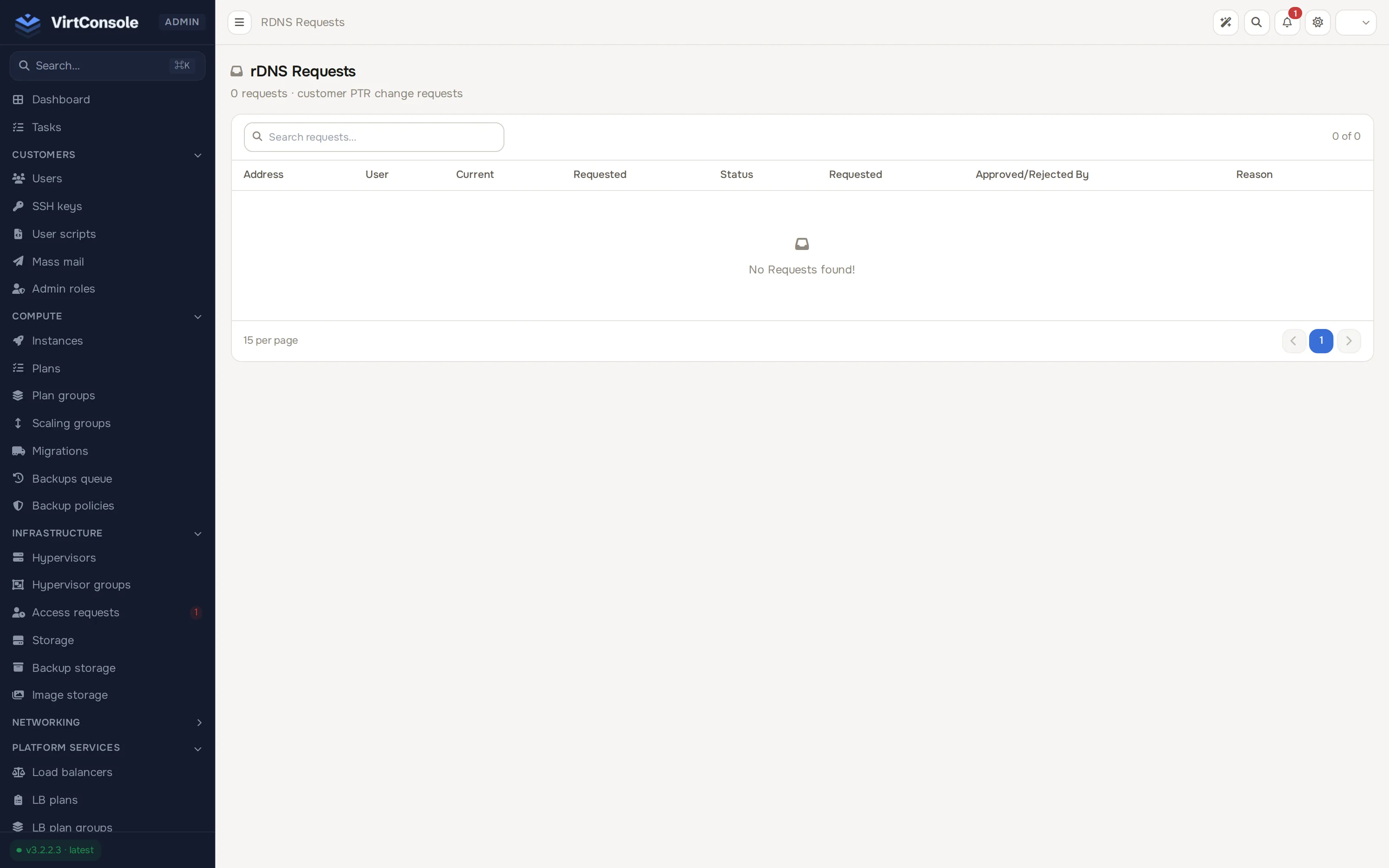
Go to Media & DNS > Reverse DNS requests. The columns are Address, User, Current, Requested (the requested record), Status, Requested (the request date), Approved/Rejected By and Reason.
- Approve. The PTR record is written to the provider.
- Reject. The request is closed. The customer sees the outcome in their panel.
Admin API
Section titled “Admin API”The same operations are available in the admin API:
POST /api/v1/dns/reverse/zonescreates a zone. Sendadopt_existing: trueto import an existing one. Creating a PowerDNS zone (withoutadopt_existing) is refused with 422nameservers_requiredwhen fewer than two ofns1tons4are set, and 422hostmaster_requiredwhenhostmaster_mailis missing. The response names the field inerrors.POST /api/v1/dns/reverse/zone/{rdnsZoneId}/rebuildstarts a rebuild.GET /api/v1/dns/reverse/zone/{rdnsZoneId}/import/previewreturns the import counts and sample rows with skip reasons.POST /api/v1/dns/reverse/zone/{rdnsZoneId}/importqueues the import. Sendoverwrite: true(a strict boolean) to replace differing values. The answer carries atask_id.POST /api/v1/subnetsandPATCH /api/v1/subnet/{subnetId}withrdns_zone_id: a zone that does not contain the subnet, or serves the other address family, is refused with 422rdns_zone_mismatchanderrors.rdns_zone_id. A zone id that does not exist fails request validation with 422 anderrors.rdns_zone_id, without a reason code. A PATCH that moves the address range of a linked subnet out of its zone is refused withrdns_zone_mismatchtoo.
Other refusals with a reason code: adopting a zone (adopt_existing: true) answers 422 zone_not_found_on_provider, 409 zone_already_managed or 503 provider_unreachable; the import preview and import endpoints answer 422 zone_not_found_on_provider, 409 provider_disabled, 409 import_in_progress (import only) or 503 provider_unreachable. See the Admin API reference and the API changelog.
Troubleshooting
Section titled “Troubleshooting”- PTR records do not resolve from the internet. The zone is probably not delegated. Check the delegation at your RIR (step 4) with
dig -x <ip>from outside your network, and check that the zone’s nameservers answer for it. - PTR records exist but under wrong names. The subnet is linked to a zone that does not contain it, or a more specific child zone on the same server shadows the one you write to. See Which zone covers which subnet.
- Creating a PowerDNS zone is refused. “needs at least two nameservers”: fill in ns1 and ns2. “needs a hostmaster email”: fill in Hostmaster Email. To keep an existing zone’s NS and SOA as they are, adopt it instead (case A).
- Linking a subnet to a zone is refused. The zone does not contain the subnet, or it is an IPv6 zone for an IPv4 subnet (or the reverse). Pick the /24 zone of an IPv4 subnet, or an IPv6 zone whose nibble prefix contains the whole subnet. A refusal saying the zone “cannot hold the PTR records of a subnet” means the zone itself is not usable: the full text is “An IPv4 zone must be exactly one /24 with three labels (such as 2.0.192.in-addr.arpa), not a /16 or an RFC 2317 classless zone, and an IPv6 zone must be single hex nibble labels under ip6.arpa.” See IPv4: one /24 zone per /24. A refusal saying the zone no longer exists means it was removed; pick another one.
- Adopting fails with “does not exist on the DNS provider”. Check the spelling of the zone (without the suffix) and that the provider is the one holding it.
- An approval or Rebuild fails to write. Check that the IP’s subnet is linked to an enabled zone and that the provider is enabled and reachable.
- An import finds nothing to match. Link the zone’s subnets first (step 3).